Manual User Creation
Manual user creation is the simplest method to add users to AI/Run CodeMie. This approach is ideal for initial setup, creating your first administrator, or managing a small number of users.
1. Navigate to Users Section
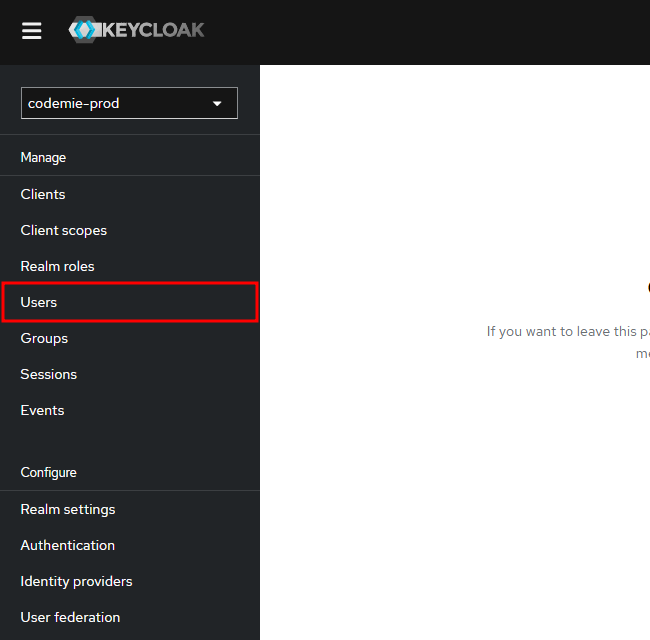
While in the codemie-prod realm, click on Users in the left sidebar menu.
2. Create New User
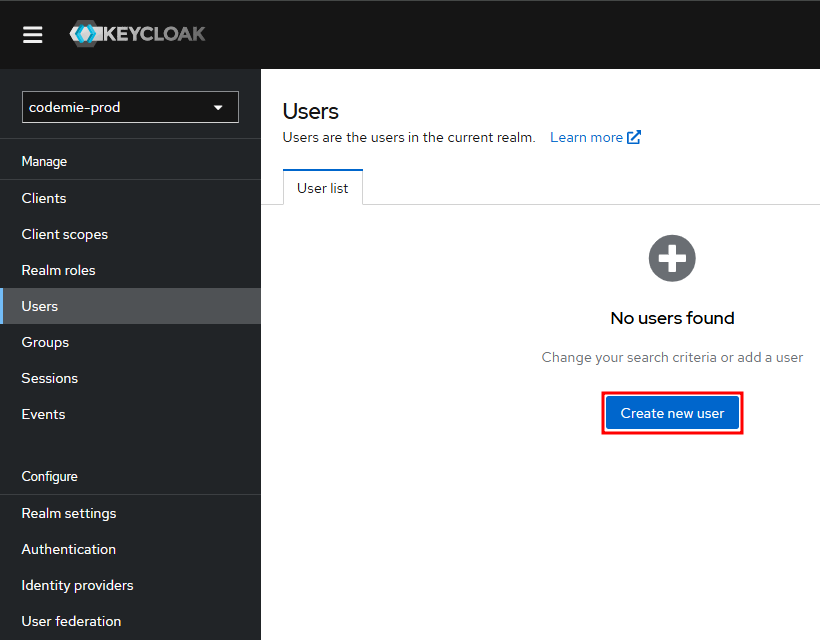
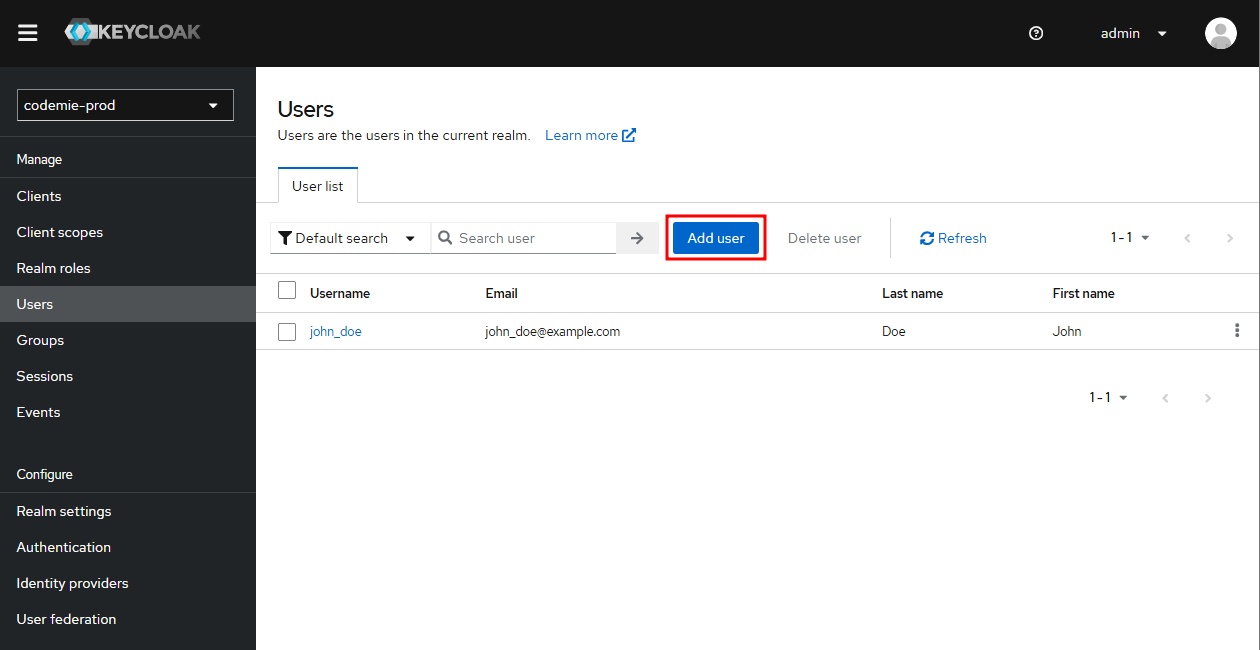
Click Create new user (or Add user if users already exist).
3. Fill in User Details
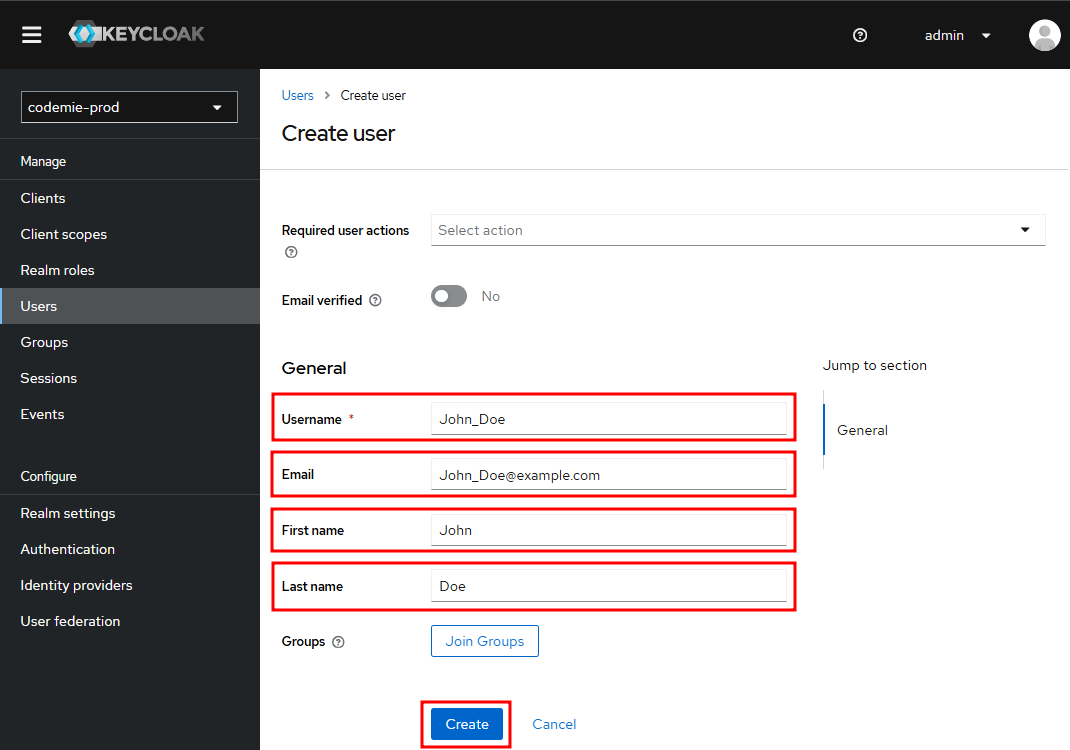
Enter the required information:
- Username: Unique identifier for the user (e.g.,
john_doe) - Email: User's email address (e.g.,
john_doe@example.com) - First name: User's first name (e.g.,
John) - Last name: User's last name (e.g.,
Doe)
Click Create to save the user.
4. Set User Credentials
After creating the user, you must set their initial password.
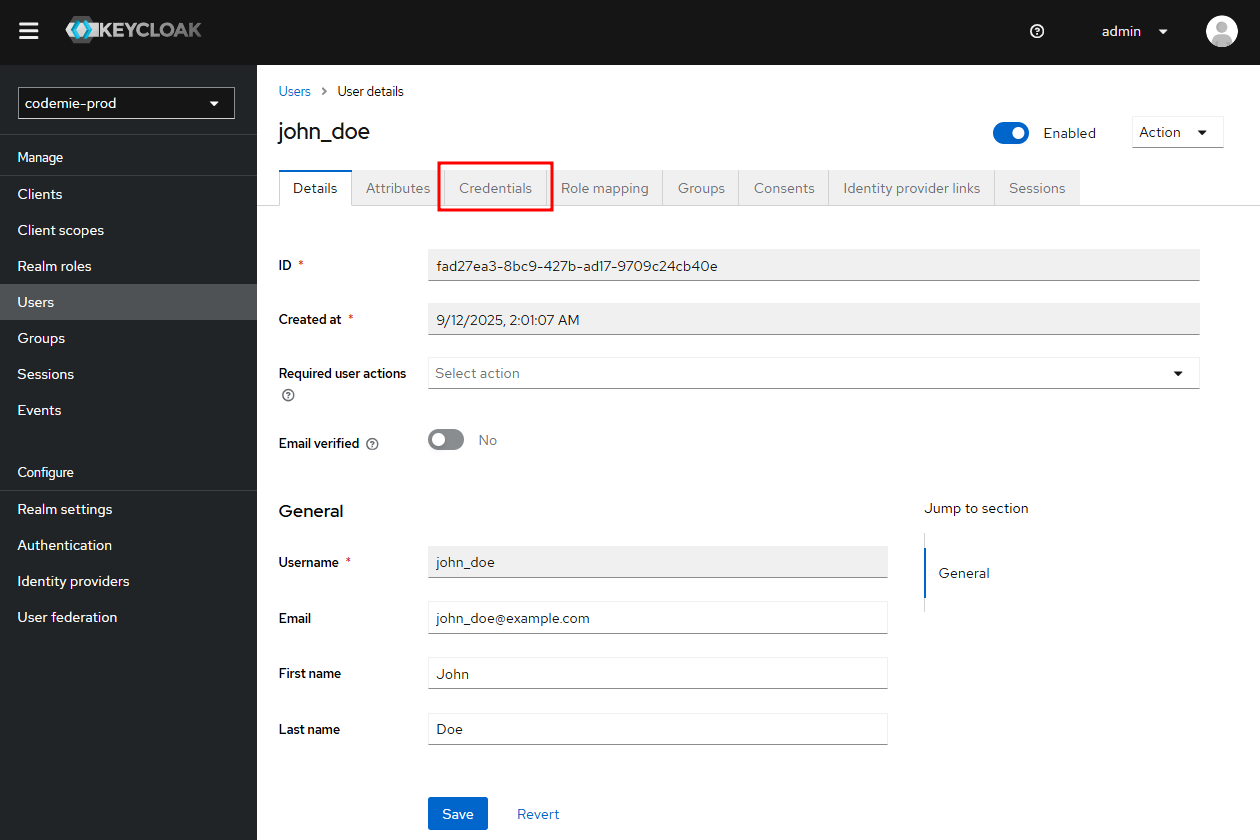
Navigate to Credentials Tab
Click on the Credentials tab in the user details page.
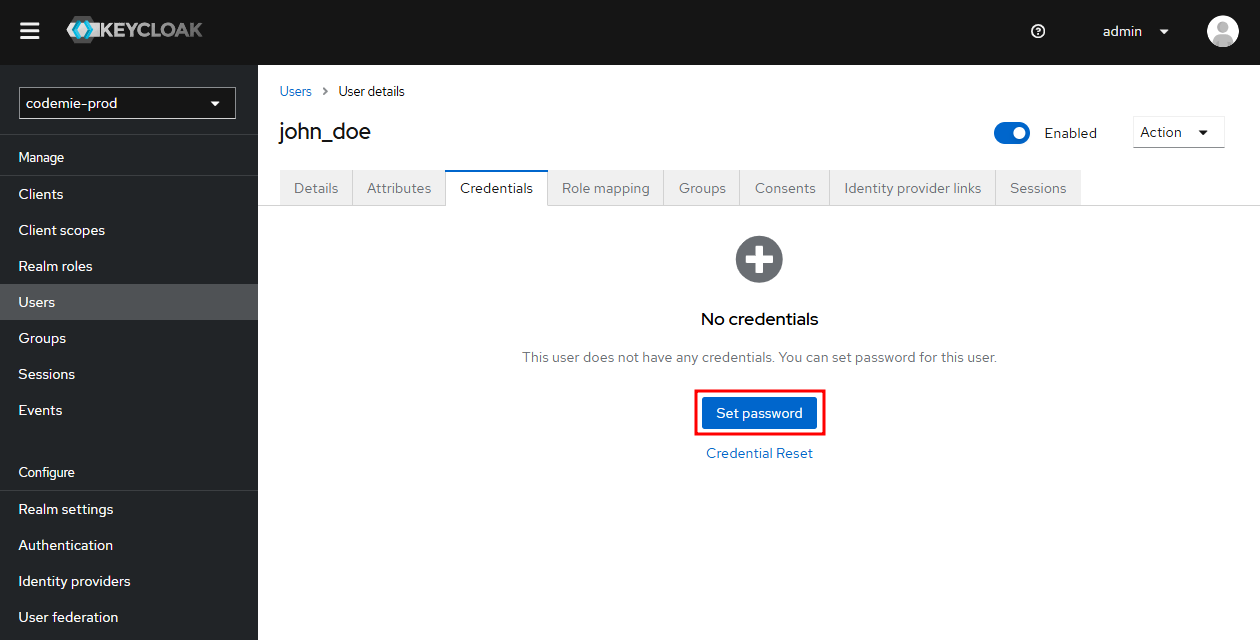
Set Password
- Click the Set password button
-
Enter the password in both fields:
- Password: Enter the initial password
- Password confirmation: Re-enter the same password
-
Configure password settings:
- Temporary: Keep this enabled (recommended) to force the user to change their password on first login
- If disabled, the password will be permanent until the user changes it
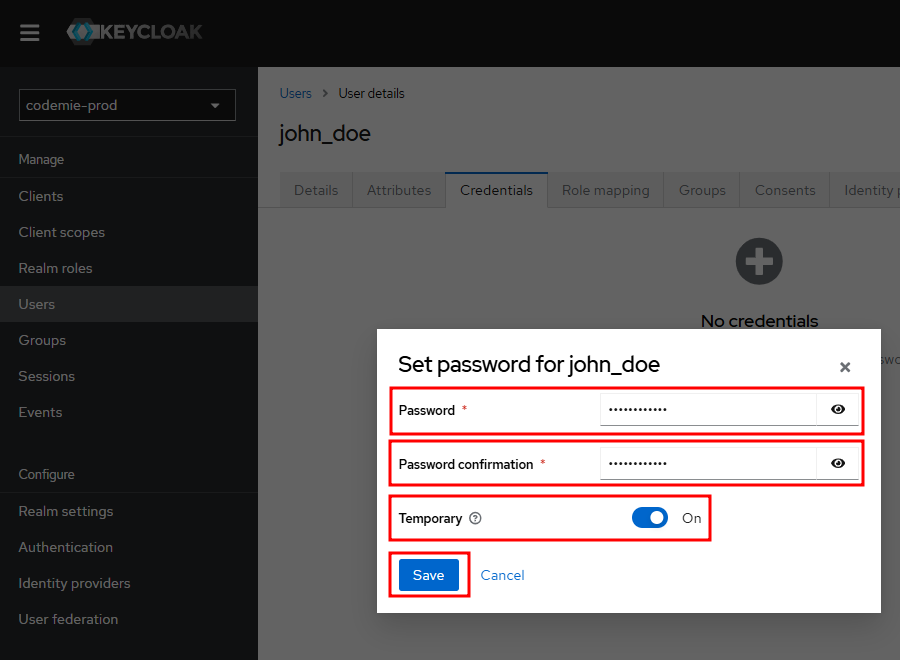
- Click Save to confirm the password
Next Step:
After creating a user, proceed to Part 2: User Authorization to assign the necessary permissions.