Create a Workflow from a Template
Creating a workflow from scratch can be complex, especially for first-time users. AI/Run CodeMie provides predefined templates that can perform various tasks out of the box, making it easy to get started quickly.
Steps to Create from Template
-
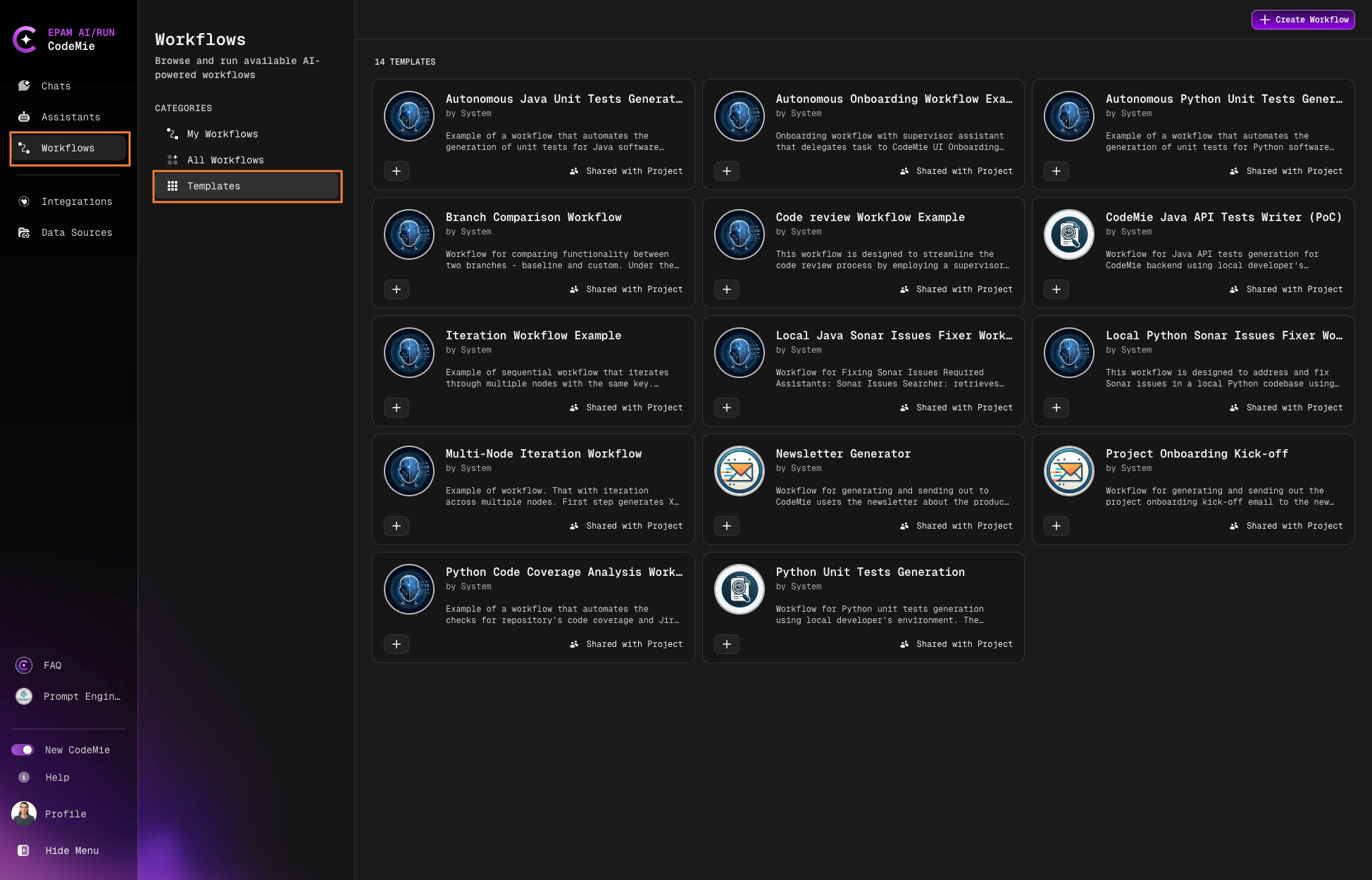
Navigate to the Workflows section in the main navigation.
-
Select the Templates tab:
-
Browse available templates and click on a template card to view its details and configuration.
-
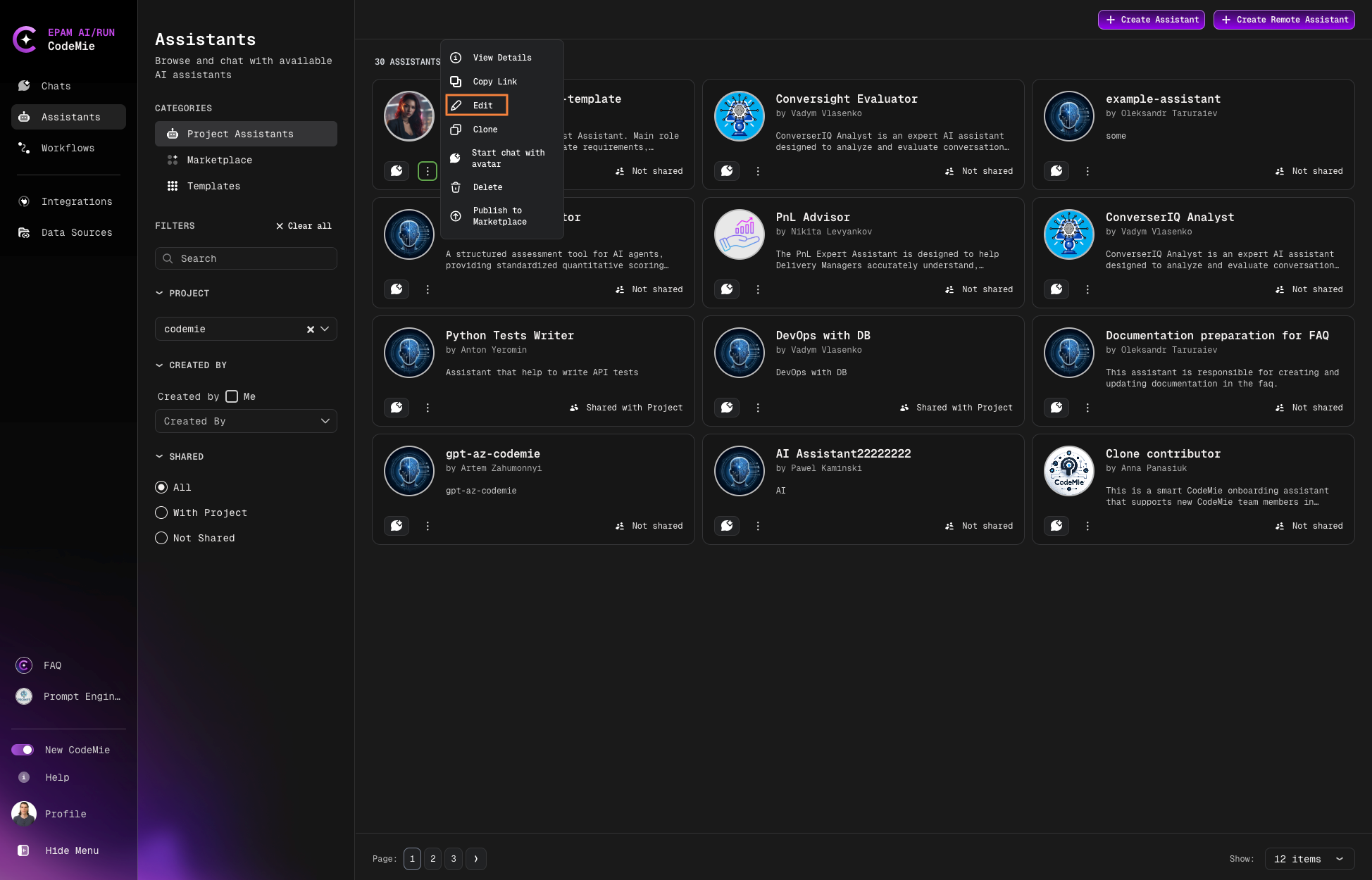
Click the + button to create a workflow from the selected template:
-
Configure the workflow settings:
Workflow Configuration
| Field | Description |
|---|---|
| Project | Your AI/Run CodeMie project (pre-populated by default) |
| Shared with Project Team | Enable to allow teammates to view and use the workflow |
| Name | Unique name for the workflow |
| Description | Brief description of the workflow's features and purpose |
| Icon URL | URL to an icon image for the workflow avatar |
| Workflow Mode | Sequential or Autonomous mode |
| Supervisor Prompt | Global context shared across all assistants; can include variables like date, time, etc. |
Workflow Modes
Sequential Mode
- Full control over workflow execution
- Define each step with specific assistants
- Best for tasks requiring precise ordering
Autonomous Mode
- AI automatically manages assistants and states
- Seamless experience with minimal setup
- Ideal for quick deployment
- Click Create to save your workflow.
Assistant Configuration
Ensure that assistants have the necessary permissions for their tasks. For example, if a workflow includes a Jira integration, the scraper assistant must have access permissions to your Jira instance.