Assistant's Tools Overview
Assistant's tools are powerful enhancements that bring completely new capabilities to AI/Run CodeMie. This page provides a comprehensive overview of all available tools.
Available Tools
| Tool | Description |
|---|---|
| Keycloak | Access management and authentication tool that allows users to leverage AI/Run CodeMie for project access control |
| SonarQube | Code quality analysis and static code review tool for comprehensive codebase analysis |
| SQL | Database operations tool for querying and managing SQL databases |
| Telegram | Send notifications to Telegram channels and bots |
| Azure | Microsoft Azure cloud platform integration for cloud resource management |
| GCP | Google Cloud Platform integration for GCP resource operations |
| AWS | Amazon Web Services integration for AWS cloud operations |
| Kubernetes | Kubernetes cluster management tool for container orchestration |
| Webhook | HTTP webhook integrations for event-driven automatization |
| Elasticsearch | Search and data analysis platform for analytical queries and data access |
| Codebase Tools | Comprehensive code analysis and management with repo browsing, code search, and file operations |
| Email Sender | Send email notifications from assistants |
| OpenAPI | Integrate with any third-party tools supporting the OpenAPI standard |
| Quality Assurance | Test management with Zephyr Scale (formerly TM4J) and Zephyr Squad for Jira environments |
| ServiceNow | ITSM operations including incident management, change requests, and CMDB operations |
| Scheduler | Task scheduling and automation (Admin role only) |
| Plugin | Custom plugin integrations for extending assistant capabilities (e.g., file system) |
| Git AzureDevOps | Azure DevOps integration for Wiki, Work Items, and Test Plans management |
| Adding MCP Server | Add and configure Model Context Protocol (MCP) servers |
| Using MCP Tools | Use MCP tools in assistants for extended capabilities |
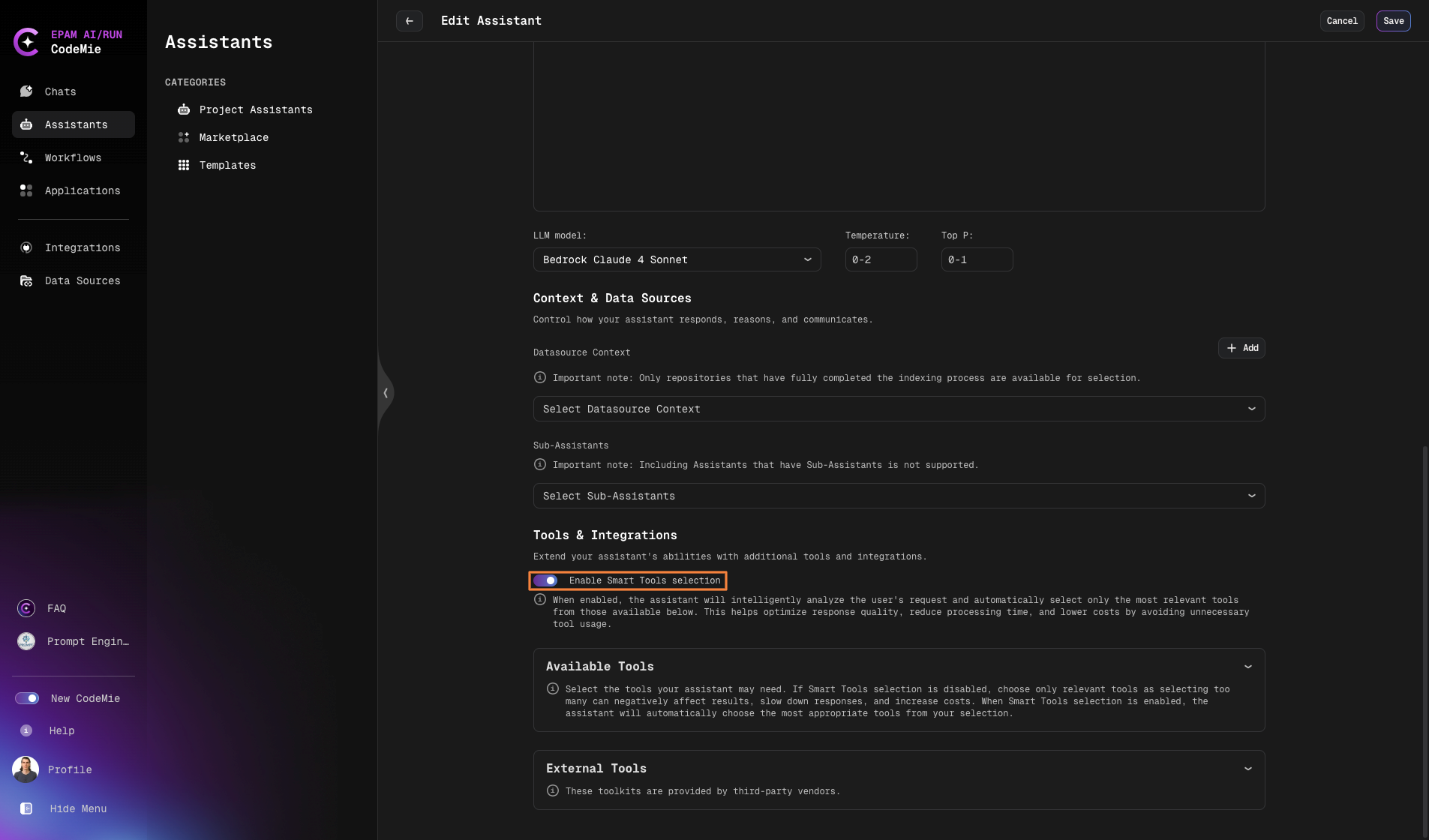
Smart Tool Selection
Smart Tool Selection is an intelligent feature that automatically selects relevant tools for your assistant based on semantic similarity, configured credentials, and permissions.
How to Enable
- Navigate to your assistant's Create or Edit page
- Locate the Smart Tool Selection toggle
- Enable or disable based on your needs
Behavior
When No Tools Are Pre-selected
The system performs semantic analysis across all registered tools and automatically selects based on:
- Semantic relevance to your assistant's purpose and conversations
- Available credentials and proper authentication
- User permissions and access rights
When Tools Are Already Selected
- Smart selection is limited to your pre-selected tools only
- Prevents context overload by maintaining a focused tool set
- Provides intelligent selection within your curated tool collection
Important Considerations
- Workflows always use the legacy/traditional approach
- The Smart Tool Selection toggle does not affect workflow behavior
- This ensures workflow consistency and predictable execution
Smart selection prevents LLM context overload and maintains optimal performance by limiting tool scope.
When to Use Smart Tool Selection
Enable Smart Tool Selection when:
- You want automatic, intelligent tool discovery
- Your assistant needs dynamic tool access based on conversation context
- You prefer minimal manual tool configuration
Keep it Disabled when:
- You need precise control over tool availability
- You're working with sensitive tools requiring explicit selection
- You prefer the traditional manual approach
Tool Integration Requirements
The table below shows which tools require integration setup and the integration name to use:
| Tool Name | Integration Required | Integration Name | Requires Project Admin |
|---|---|---|---|
| Project Management => Jira | ✅ Yes | Jira | ❌ No |
| Git | ✅ Yes | Git | ❌ No |
| VCS => GitHub / GitLab / AzureDevOps | ✅ Yes | Git | ❌ No |
| Project Management => Confluence | ✅ Yes | Confluence | ❌ No |
| Cloud => Kubernetes | ✅ Yes | Kubernetes | ❌ No |
| Cloud => AWS | ✅ Yes | AWS | ❌ No |
| Cloud => GCP | ✅ Yes | GCP | ❌ No |
| Cloud => Azure | ✅ Yes | Azure | ❌ No |
| Access Management => Keycloak | ✅ Yes | Keycloak | ❌ No |
| Cloud => AzureDevOps | ✅ Yes | AzureDevOps | ❌ No |
| Azure DevOps Wiki | ✅ Yes | AzureDevOps | ❌ No |
| Azure DevOps Work Item | ✅ Yes | AzureDevOps | ❌ No |
| Azure DevOps Test Plan | ✅ Yes | AzureDevOps | ❌ No |
| Data Management => Elasticsearch | ✅ Yes | Elastic | ❌ No |
| OpenAPI | ✅ Yes | OpenAPI | ❌ No |
| Plugin | ✅ Yes | Plugin | ❌ No |
| FileSystem => Code Interpreter | ✅ Yes | FileSystem | ❌ No |
| FileSystem => Generate Image | ❌ No | --- | ❌ No |
| Notification => Email | ✅ Yes | ❌ No | |
| Codebase Tools => Sonar | ✅ Yes | Sonar | ❌ No |
| Codebase Tools => Get Repo Tree (Experimental) | ❌ No | --- * | ❌ No |
| Codebase Tools => Search Code (Experimental) | ❌ No | --- * | ❌ No |
| Codebase Tools => Read Files Content | ❌ No | --- * | ❌ No |
| Codebase Tools => Read Files Content with Summary | ❌ No | --- * | ❌ No |
| Data Management => SQL | ✅ Yes | SQL | ❌ No |
| Notification => Telegram | ✅ Yes | Telegram | ❌ No |
| Webhook | ✅ Yes | Webhook | ✅ Yes |
| Quality Assurance => ZephyrCloud | ✅ Yes | ZephyrCloud | ❌ No |
| Quality Assurance => ZephyrSquad | ✅ Yes | ZephyrSquad | ❌ No |
| Research => Google Search | ❌ No | --- | ❌ No |
| Research => Google Places | ❌ No | --- | ❌ No |
| Research => Wikipedia | ❌ No | --- | ❌ No |
| Research => Tavily Search | ❌ No | --- | ❌ No |
| Research => Web Scraper | ❌ No | --- | ❌ No |
| Scheduler | ✅ Yes | Scheduler | ✅ Yes |
By choosing Git tool only: The operations listed above are available. Git data source must be added as additional context.
By choosing VCS tool: All operations are available without needing additional Git data source context.
MCP (Model Context Protocol)
AI/Run CodeMie supports MCP servers for extending assistant capabilities.
| Topic | Description |
|---|---|
| Adding an MCP Server | Learn how to add and configure MCP servers |
| Using MCP Tools in Assistants | Learn how to use MCP tools within your assistants |
Need Help?
For detailed instructions on configuring specific tools, click on the tool name links in the tables above to view the dedicated guide for each tool.