Scheduler
Overview
CRON Scheduler integrations allow you to automatically trigger CodeMie workflows, assistants and datasources indexing at specified times using cron expressions. You can also provide a starting prompt that will be used as the initial input when the workflow begins execution.
Prerequisites
- To create a scheduler integration user Project Admin permissions (for project level integrations) access
Setting Up CRON Integration
1. Navigate to Integrations
- Go to Integrations → Project Integrations
- Click + New Integration
2. Configure Integration Settings
- Project: Select your target project
- Is Enabled: Status of integration on/off
- Credential Type: Select Scheduler
- Alias: Provide a descriptive name for your integration
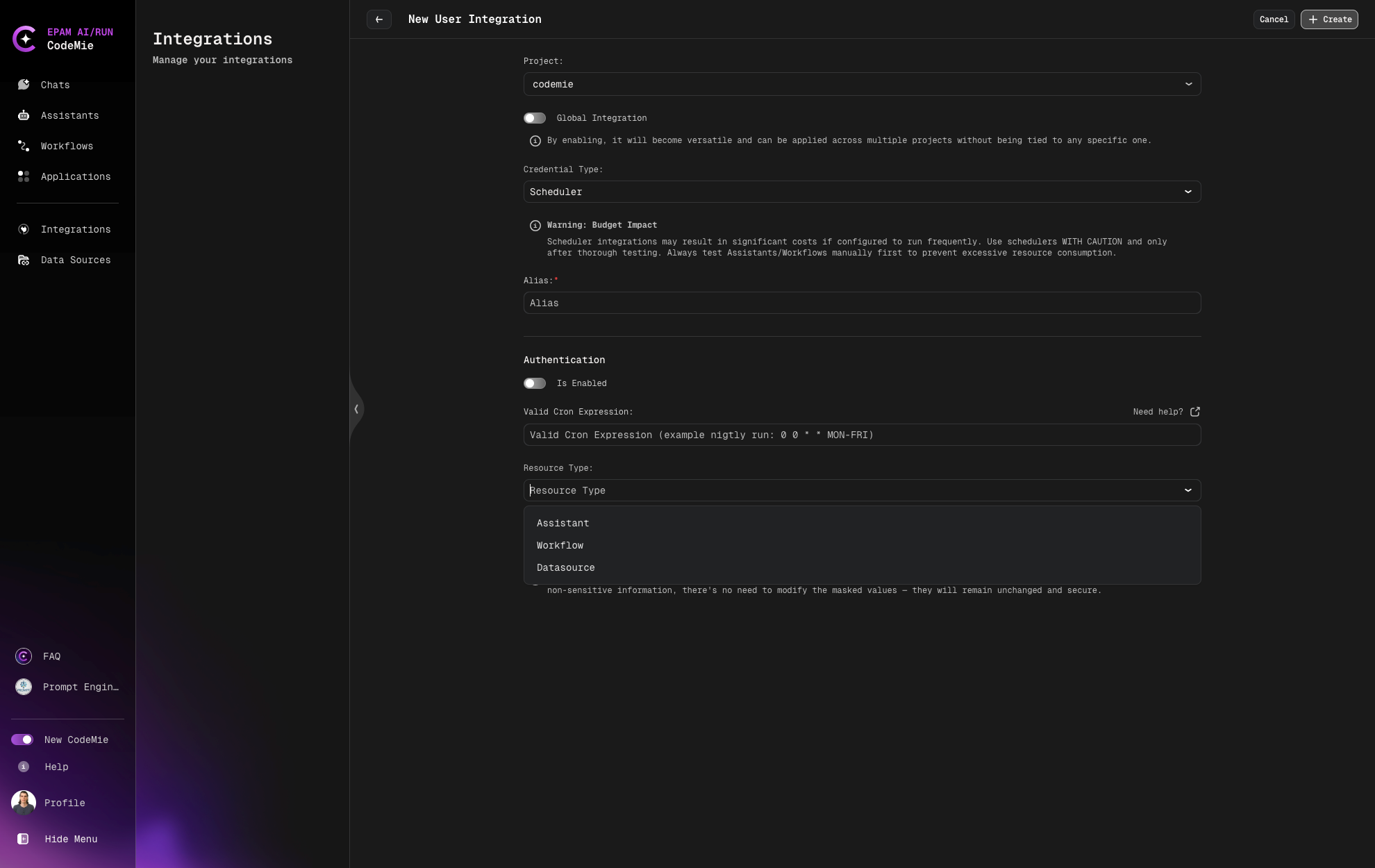
3. Set Up Authentication & Scheduling
- Valid Cron Expression: Enter your cron schedule (e.g.,
0 0 * * MON-FRIfor daily at midnight, weekdays only) - Use the "Need help?" link for cron expression guidance
4. Configure Resource Settings
- Resource Type: Select Workflow (can also be Assistant or Datasources)
- Resource ID: Enter the ID of your workflow
5. Add Starting Prompt (Optional)
- In the integration setup, you can specify a starting prompt
- This prompt will be used as the initial input when the CRON triggers the workflow
- Example: "Analyze today's pull requests and generate a summary report"
Cron Expression Examples
# Every day at 9:00 AM
0 9 * * *

# Every weekday at 6:00 PM
0 18 * * MON-FRI

# Every hour during business hours (9-5, weekdays)
0 9-17 * * MON-FRI

# Every 15 minutes
*/15 * * * *
How Starting Prompts Work
- When the CRON schedule triggers, the workflow begins with your specified starting prompt
- The prompt provides context and initial instructions to the workflow
- If no starting prompt is provided, the workflow will start with its default configuration
- Starting prompts enhance automation accuracy and provide better task context