Azure
AI/Run CodeMie can interact with various cloud providers, including Microsoft Azure. This integration allows users to view and manage cloud resources. To integrate AI/Run CodeMie with Azure cloud provider, follow the steps below:
1. Configure Azure
1.1. Log in to your Azure account.
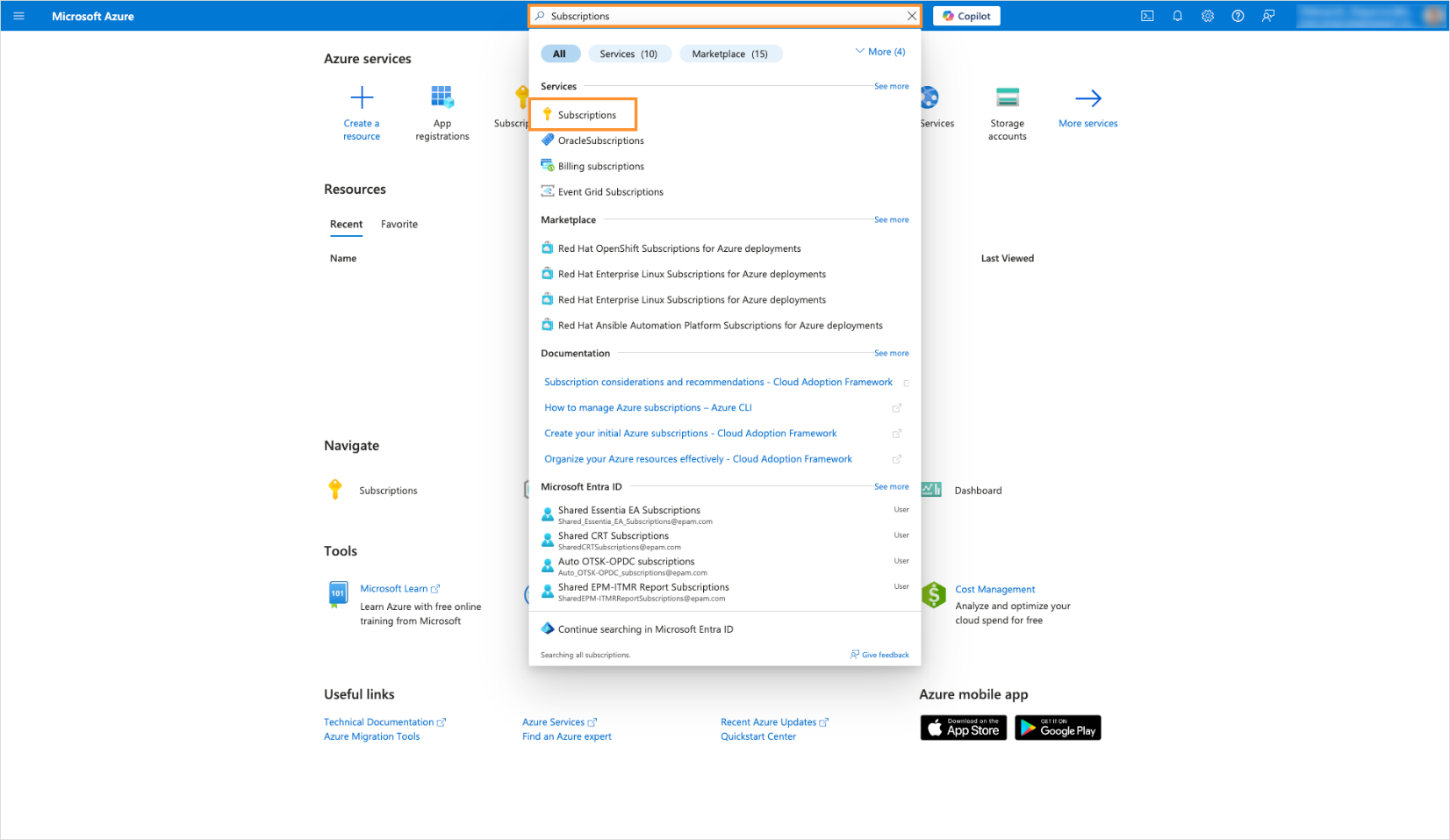
1.2. In the search bar, enter Subscriptions:
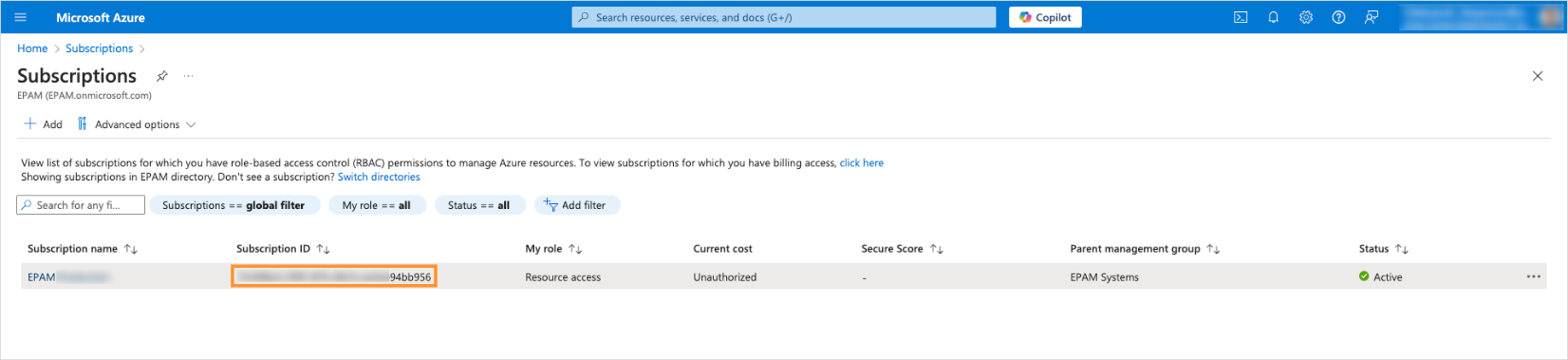
1.3. In the Subscriptions page, click + Add or select the Subscription that already exists.
1.4. Copy Subscription ID.
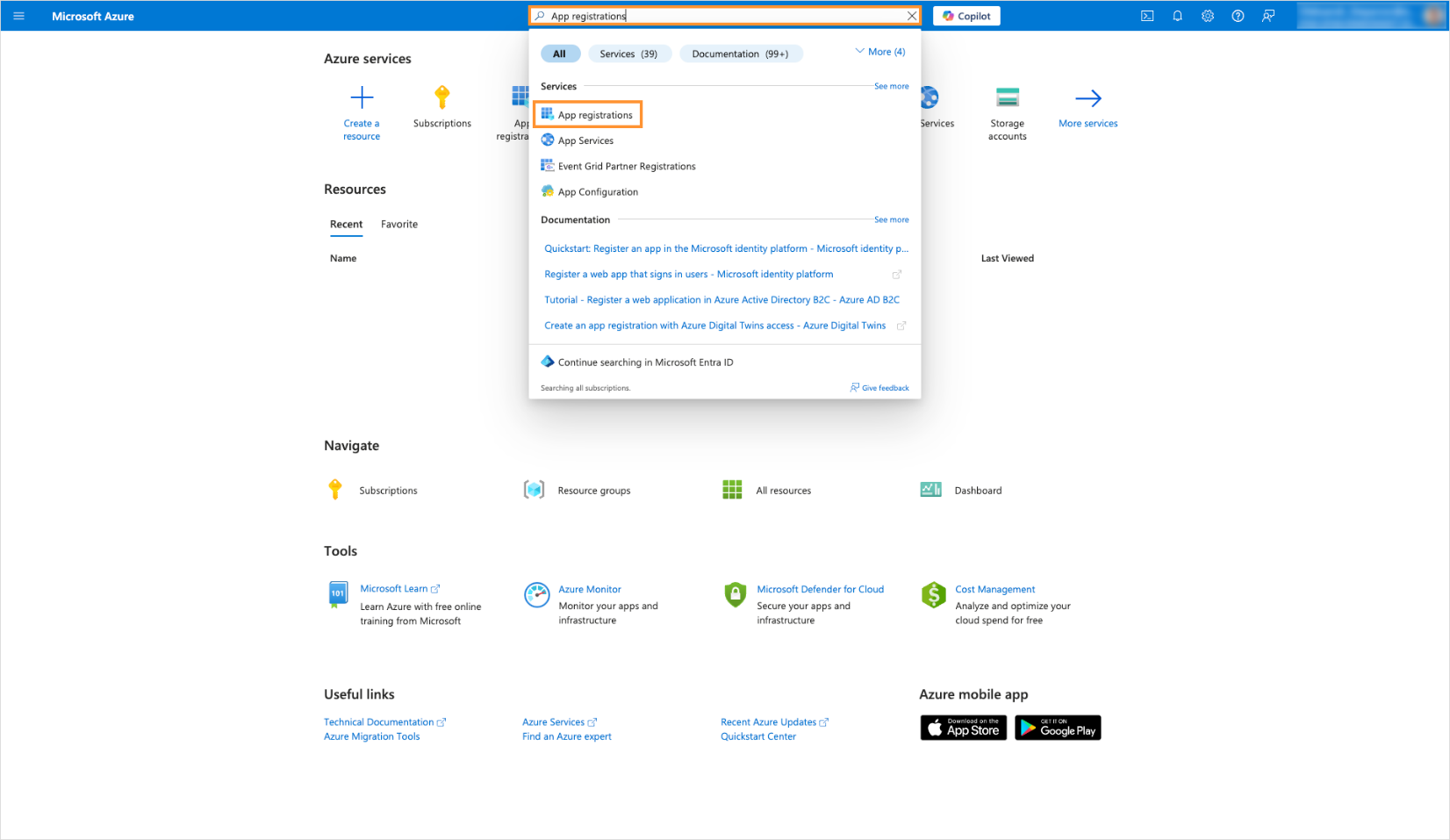
1.5. In the search bar, enter App registration:
1.6. Click + New registrations or select the application that already exists:

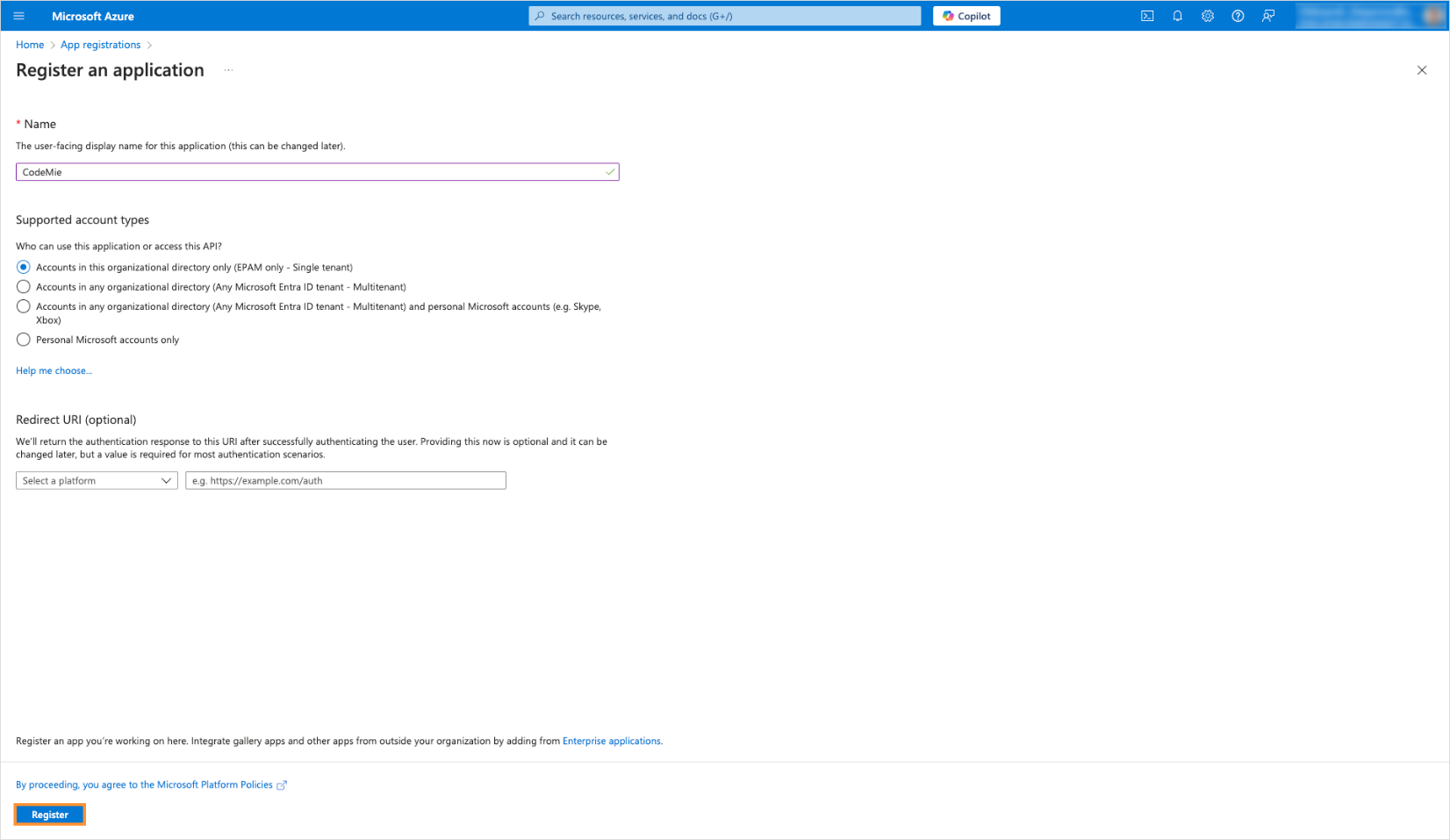
1.7. Enter the application name and click Register:
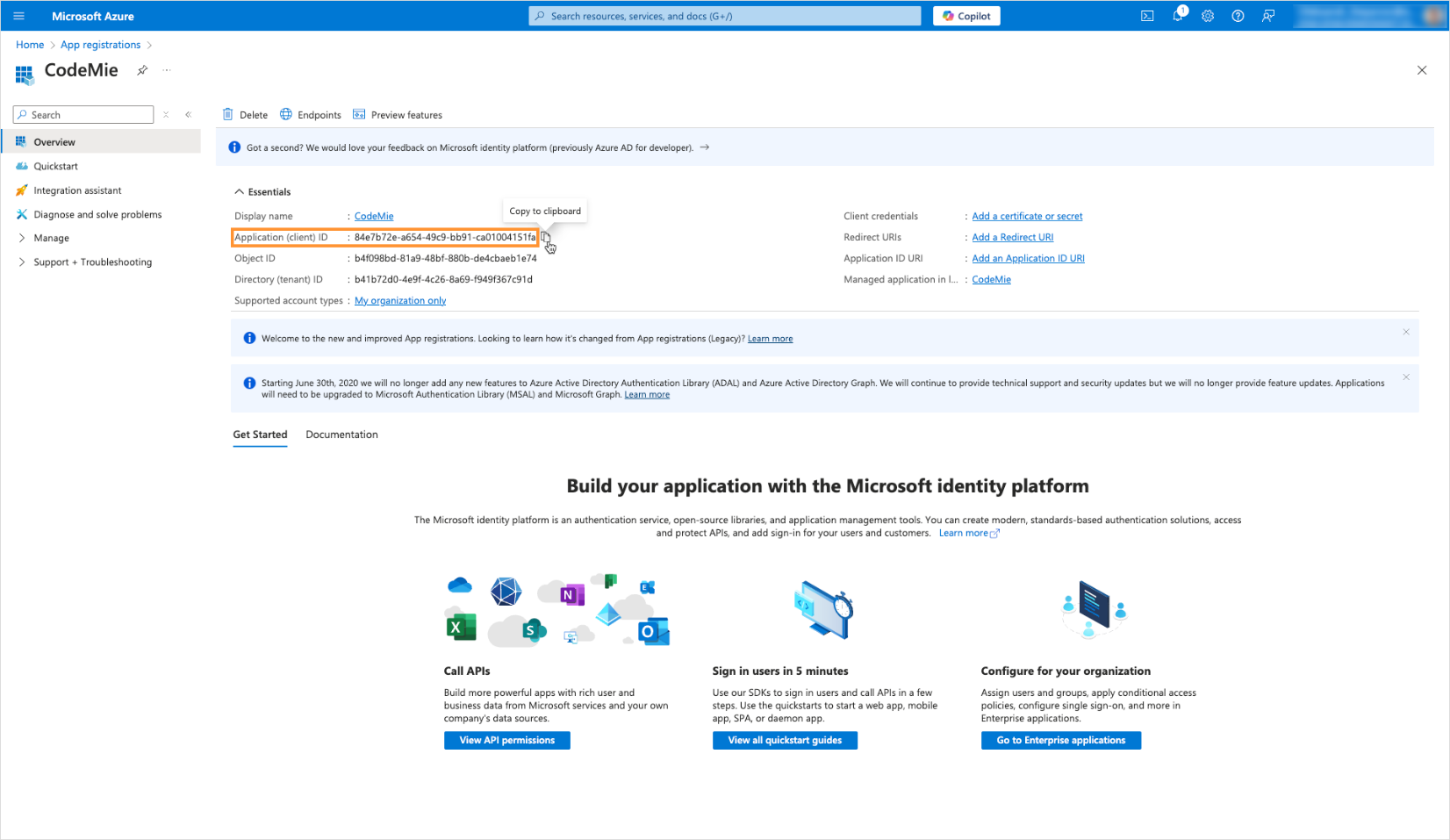
1.8. Copy Application Client ID:
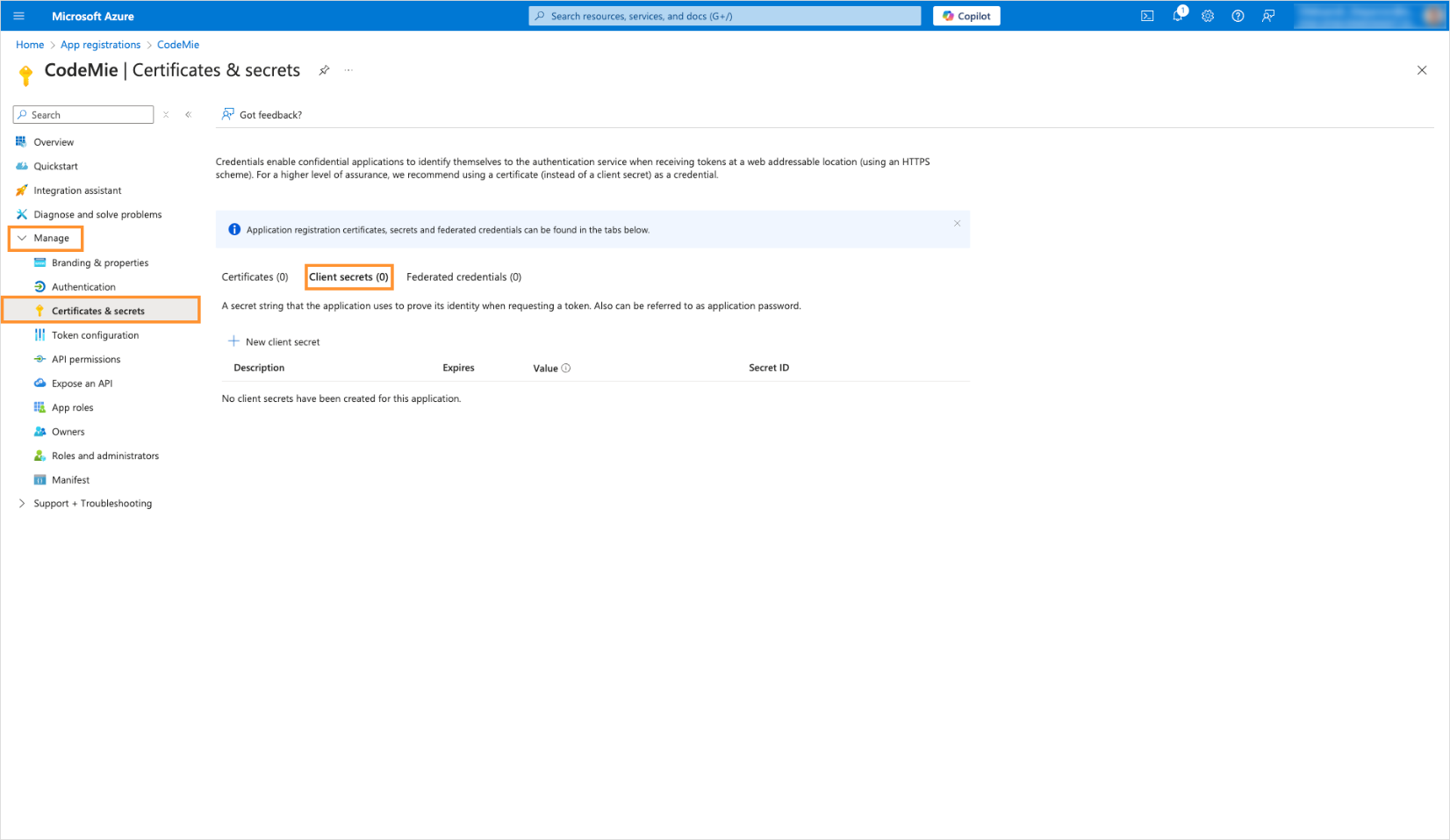
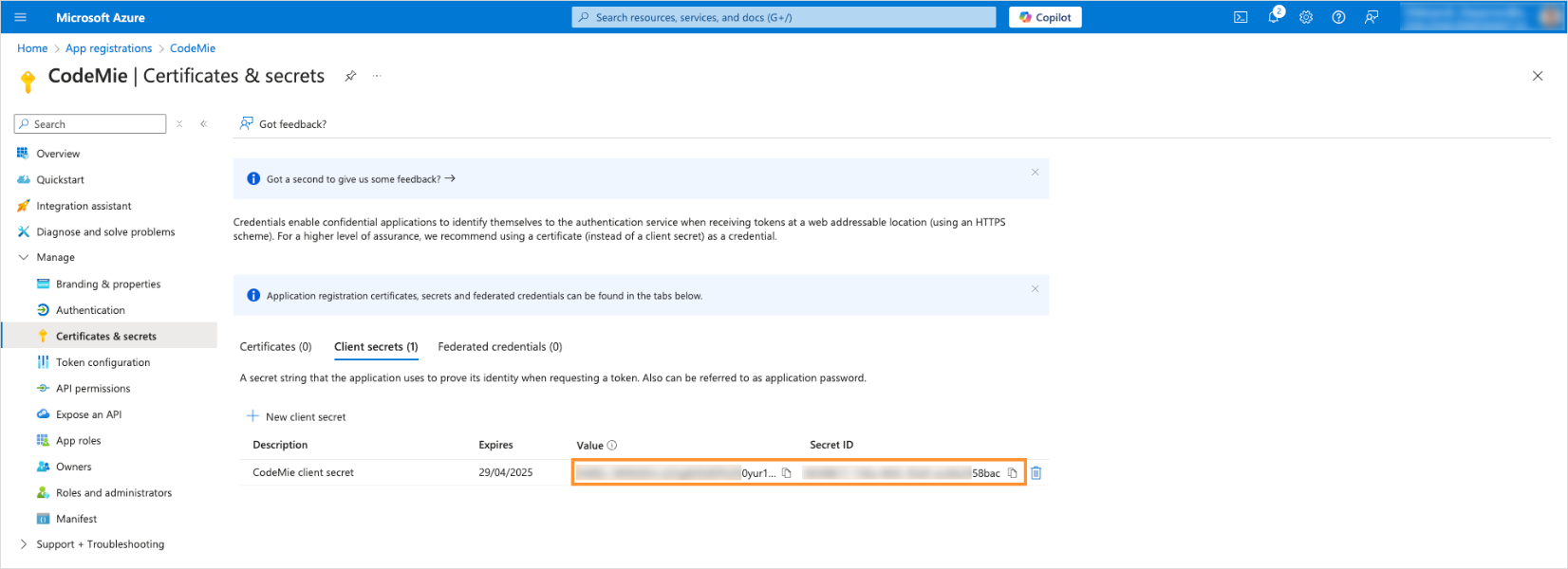
1.9. Navigate to Manage → Certificates & secrets → Client secrets:
1.10. Click + New client secret. Fill in the description field and click Add:
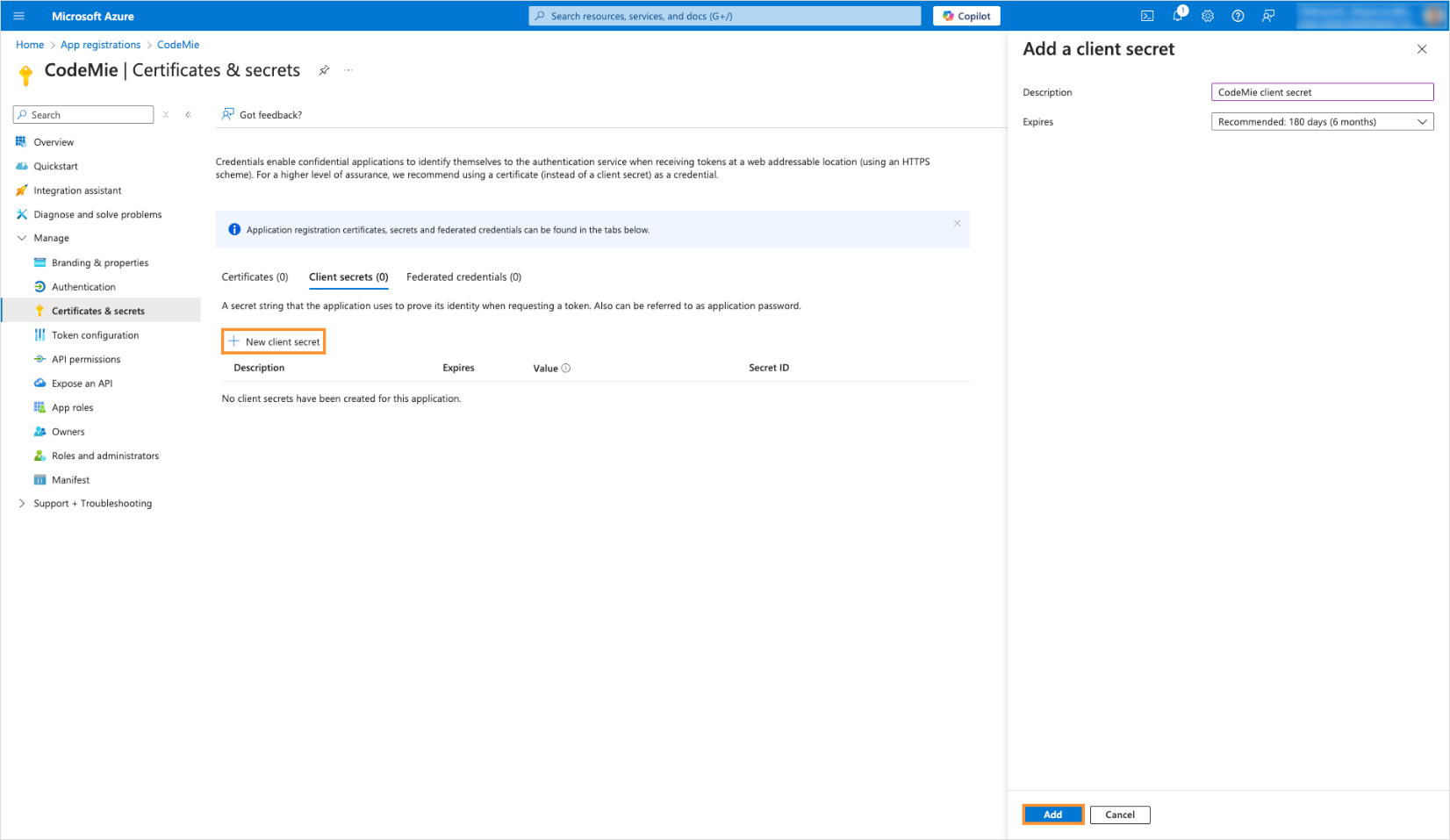
1.11. Copy Secret ID and Value:
2. Configure Integration in AI/Run CodeMie
2.1. In the AI/Run CodeMie main menu, click the Integrations button.
2.2. Select User or Project, depending on your needs, and click Create.
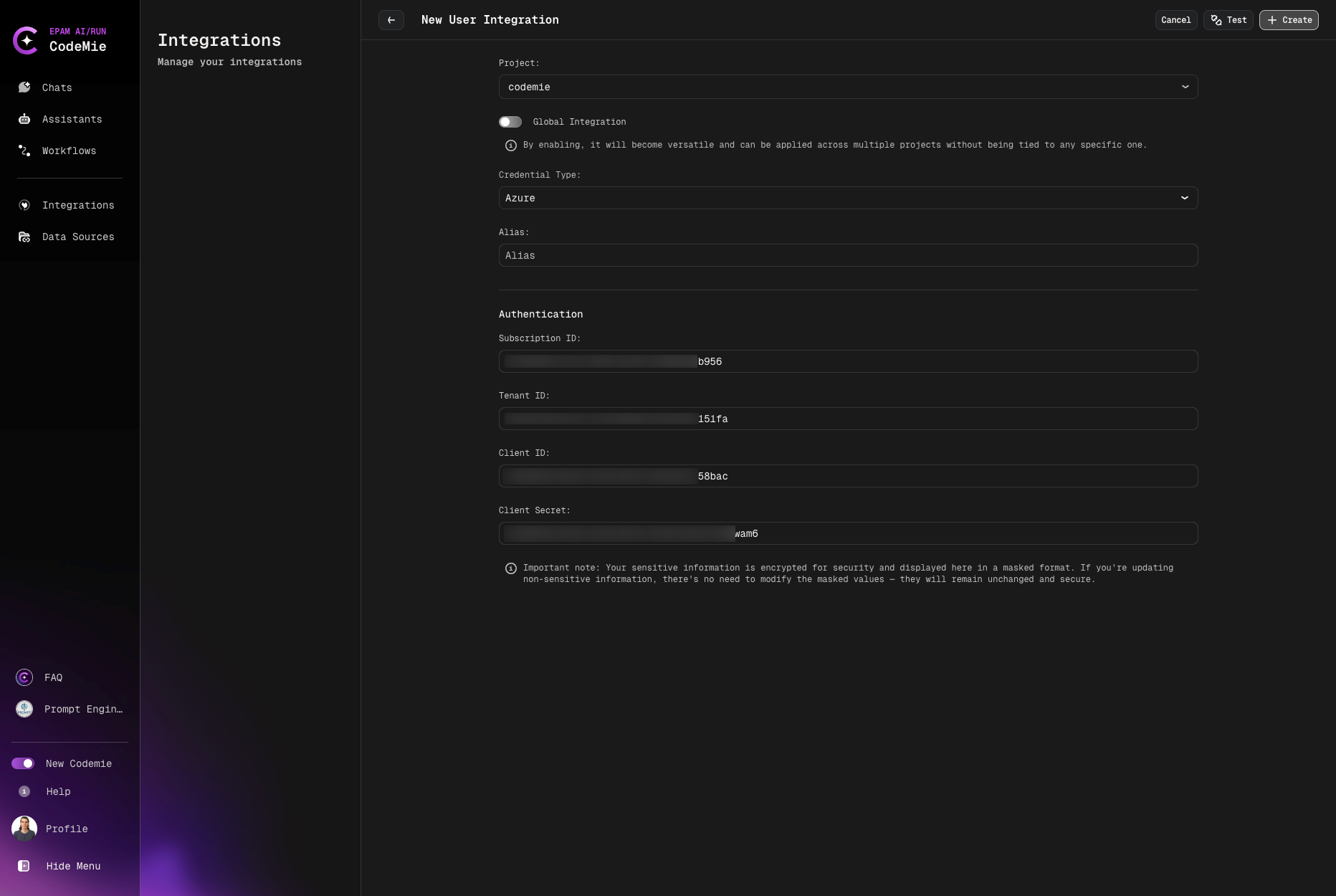
2.3. Fill in the required fields and click Create:
- Project Name: Specify project name.
- Credential Type: Azure
- Alias: Specify the integration name.
- Subscription ID: Paste the subscription ID copied on step 1.4.
- Tenant ID: Paste the "Application Client ID" copied from step 1.8.
- Client ID: Paste the Secret ID data copied from step 1.10.
- Client Secret: Paste the Value data copied from step 1.11.
3. Enable Azure Tool in Assistant
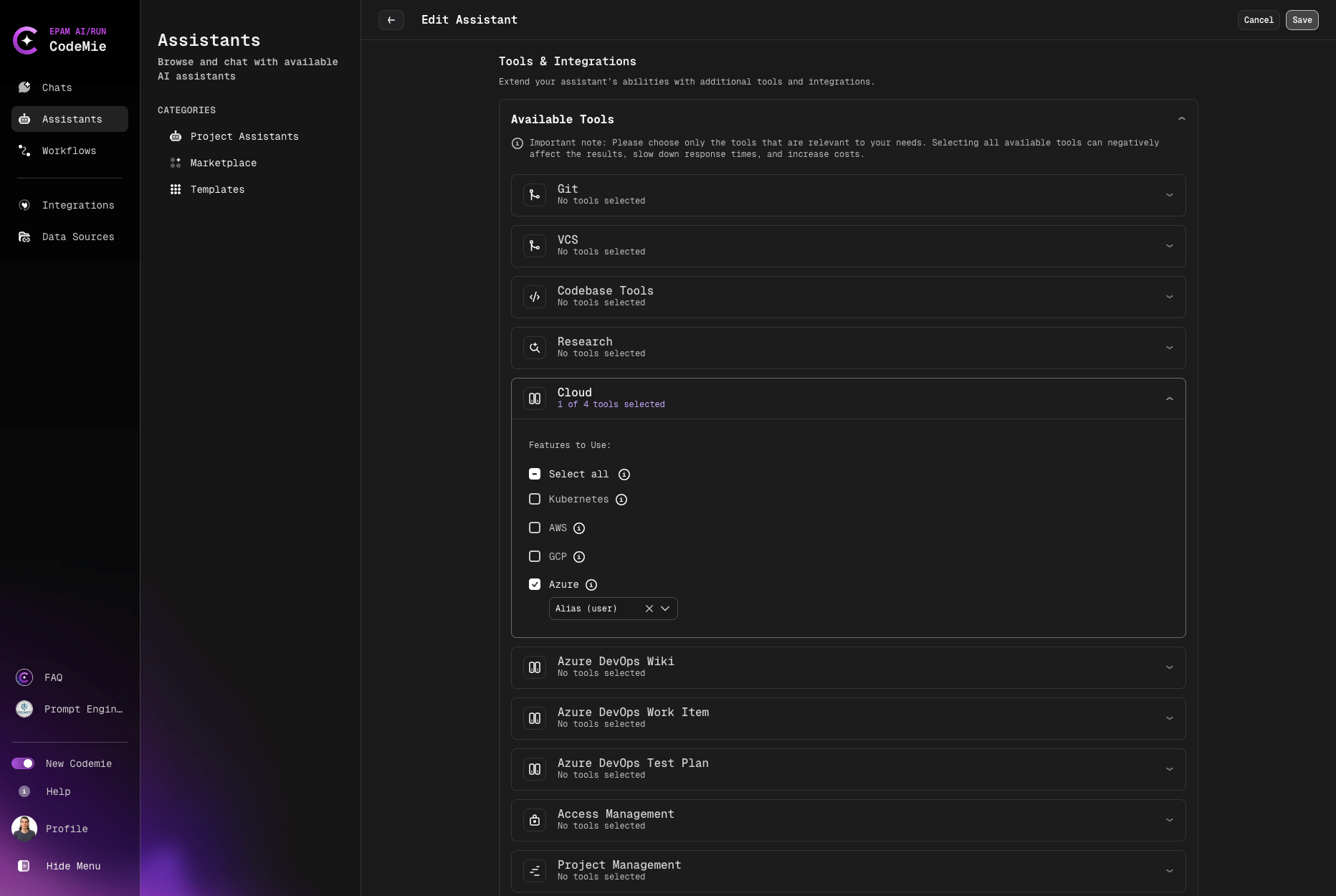
3.1. Modify your assistant by enabling Azure integration or create a new assistant with this tool: