SonarQube
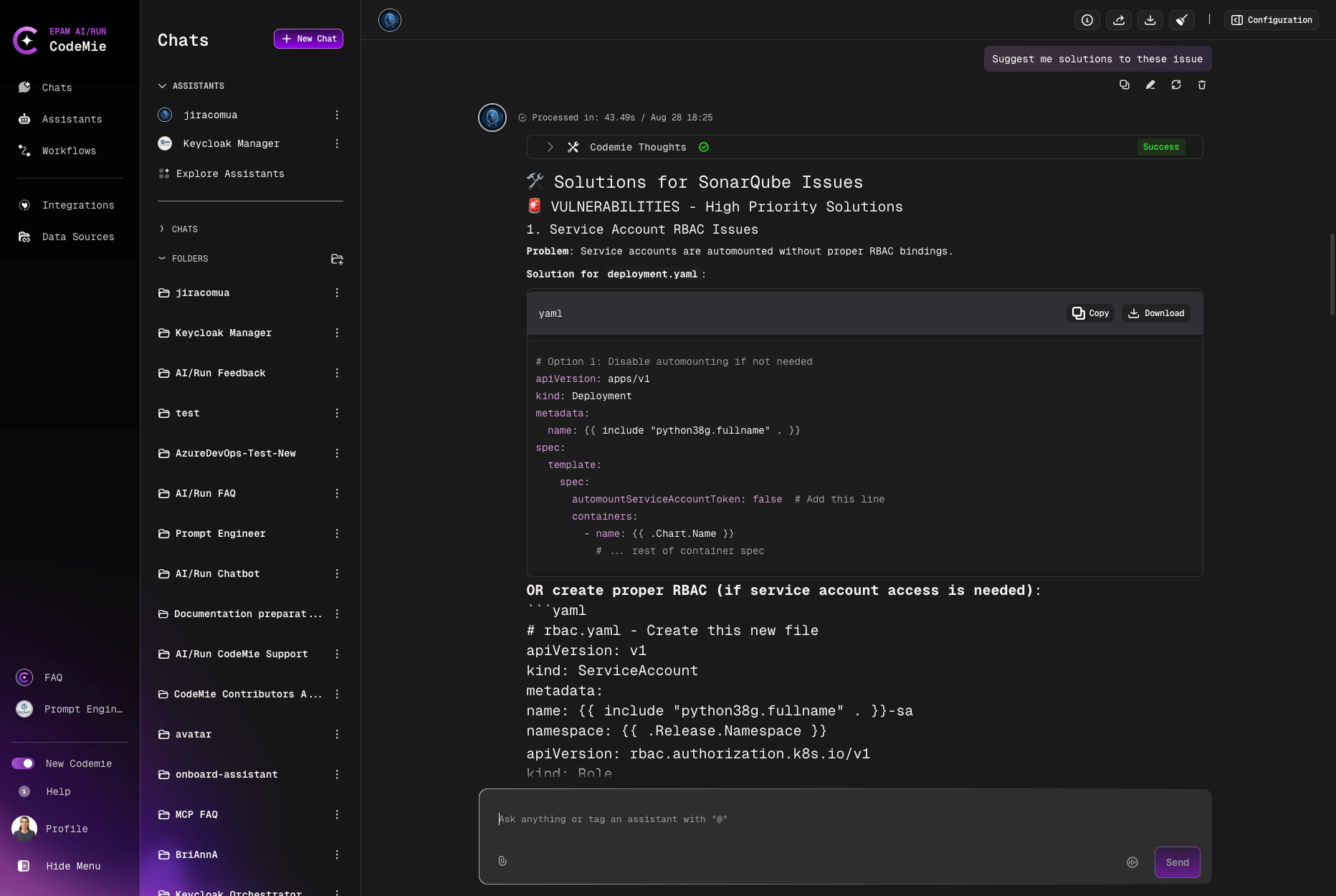
AI/Run CodeMie supports SonarQube integration mainly for retrieving data through a generic approach, focusing on API requests (GET requests, specifically). This will allow users to get SonarQube projects' data directly from AI/Run CodeMie. Consider the case when you ask an AI/Run CodeMie assistant to pull information about bugs in a particular project. It displays all the bugs, code vulnerabilities, code smells and suggests solutions to remediate the issues.
To integrate SonarQube with AI/Run CodeMie, follow the steps below:
1. Generate SonarQube Token
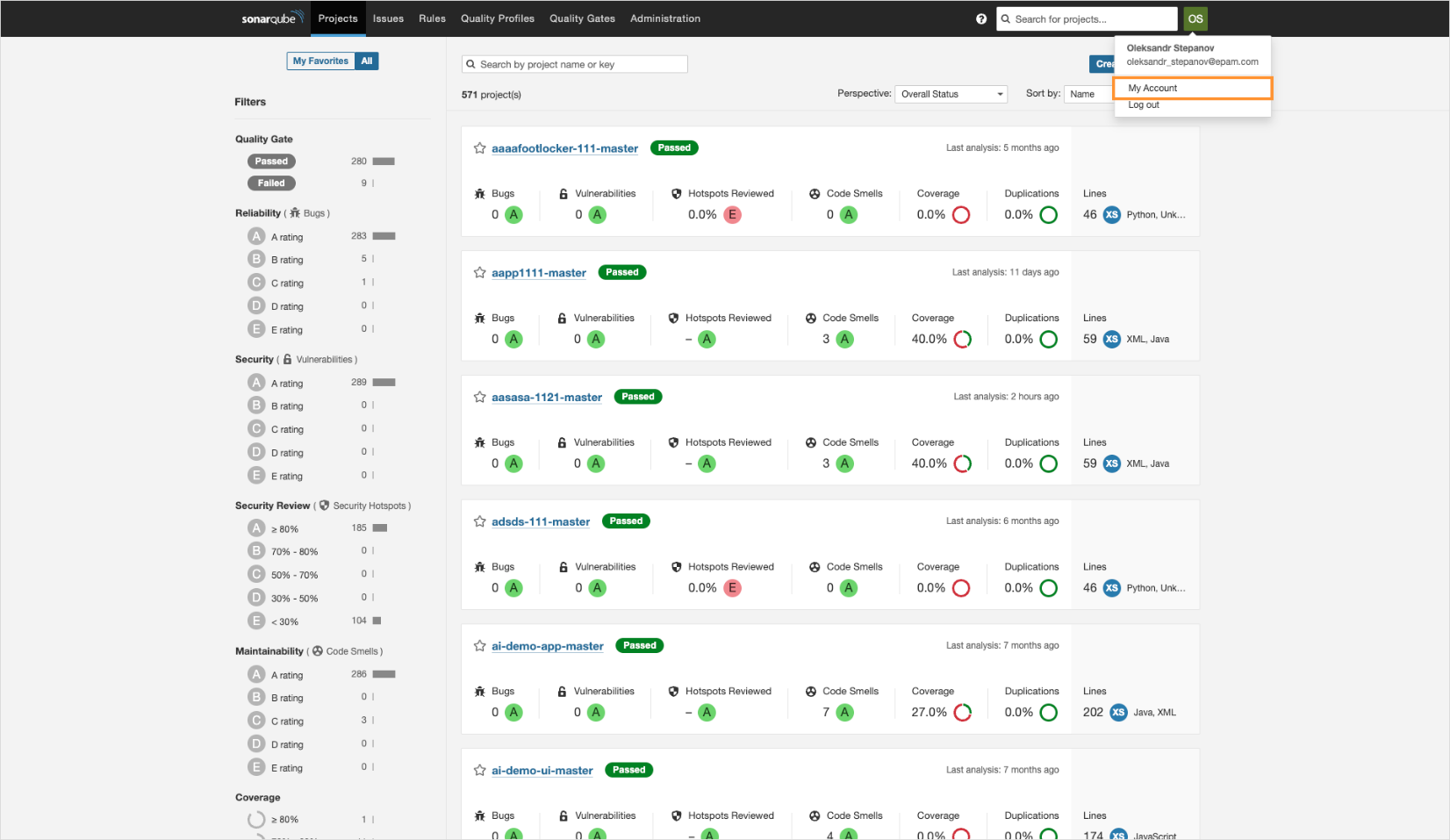
1.1. Open your SonarQube instance. Click your user account icon and select My account:
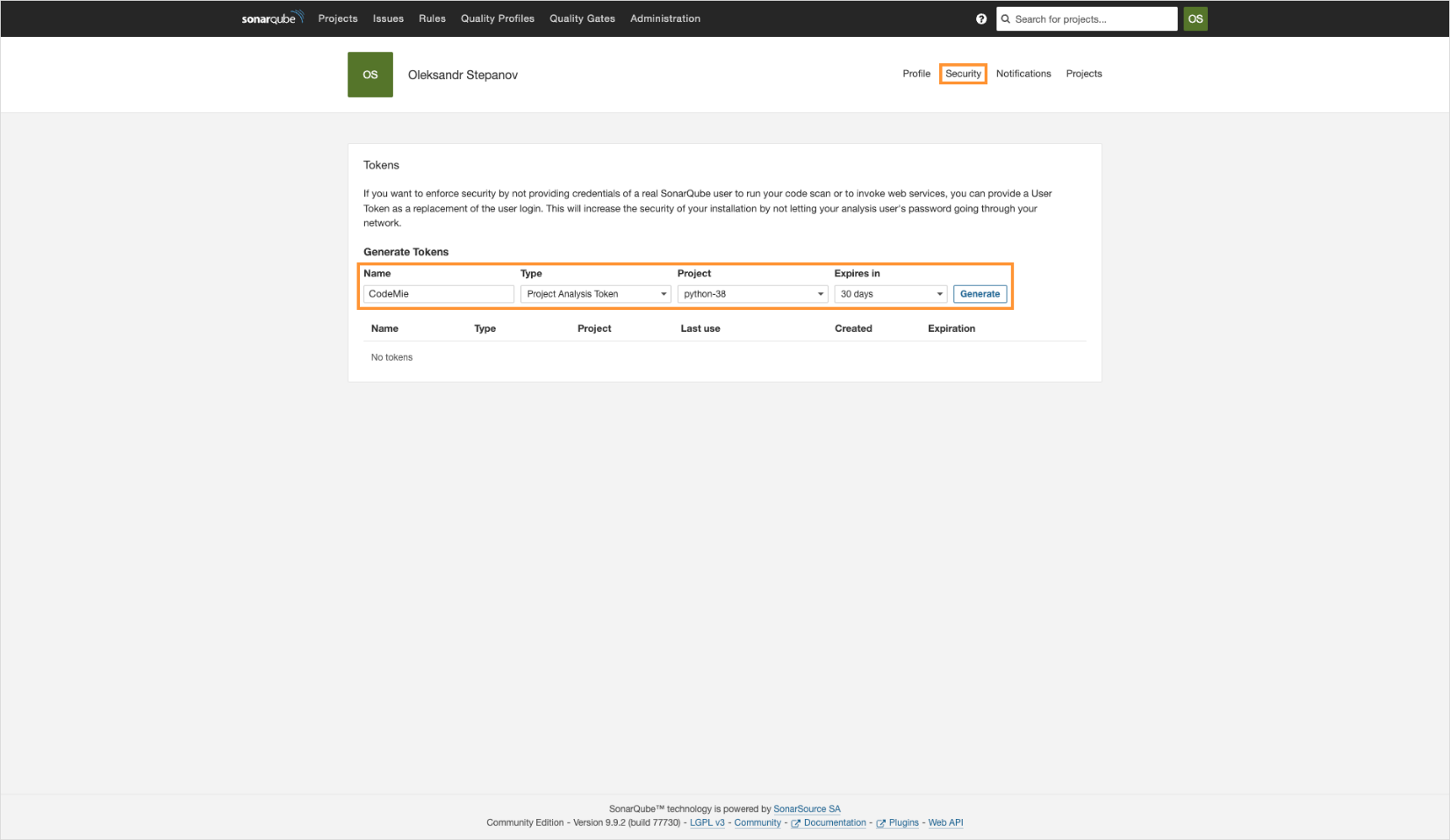
1.2. In the account menu, select the Security tab. Specify token parameters and click Generate:
- Name: Specify your token's name.
- Type: Project Analysis Token
- Project: Select a SonarQube project that you want an AI assistant to analyze.
- Expires: Set appropriate expiry date.
1.3. Copy the generated token and navigate to the Integrations tab.
2. Configure Integration in AI/Run CodeMie
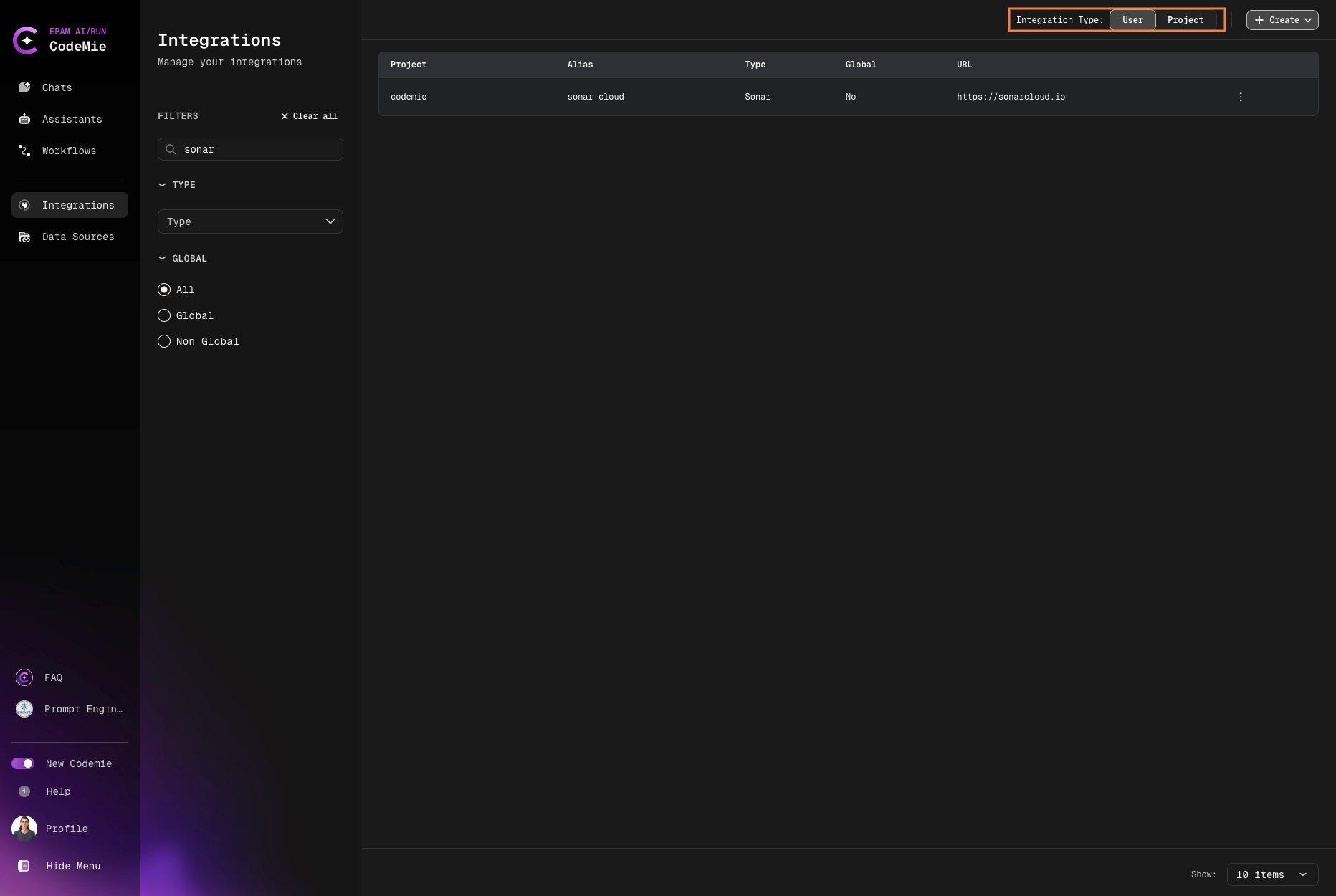
2.1. In the User/Project tab, click + Create:
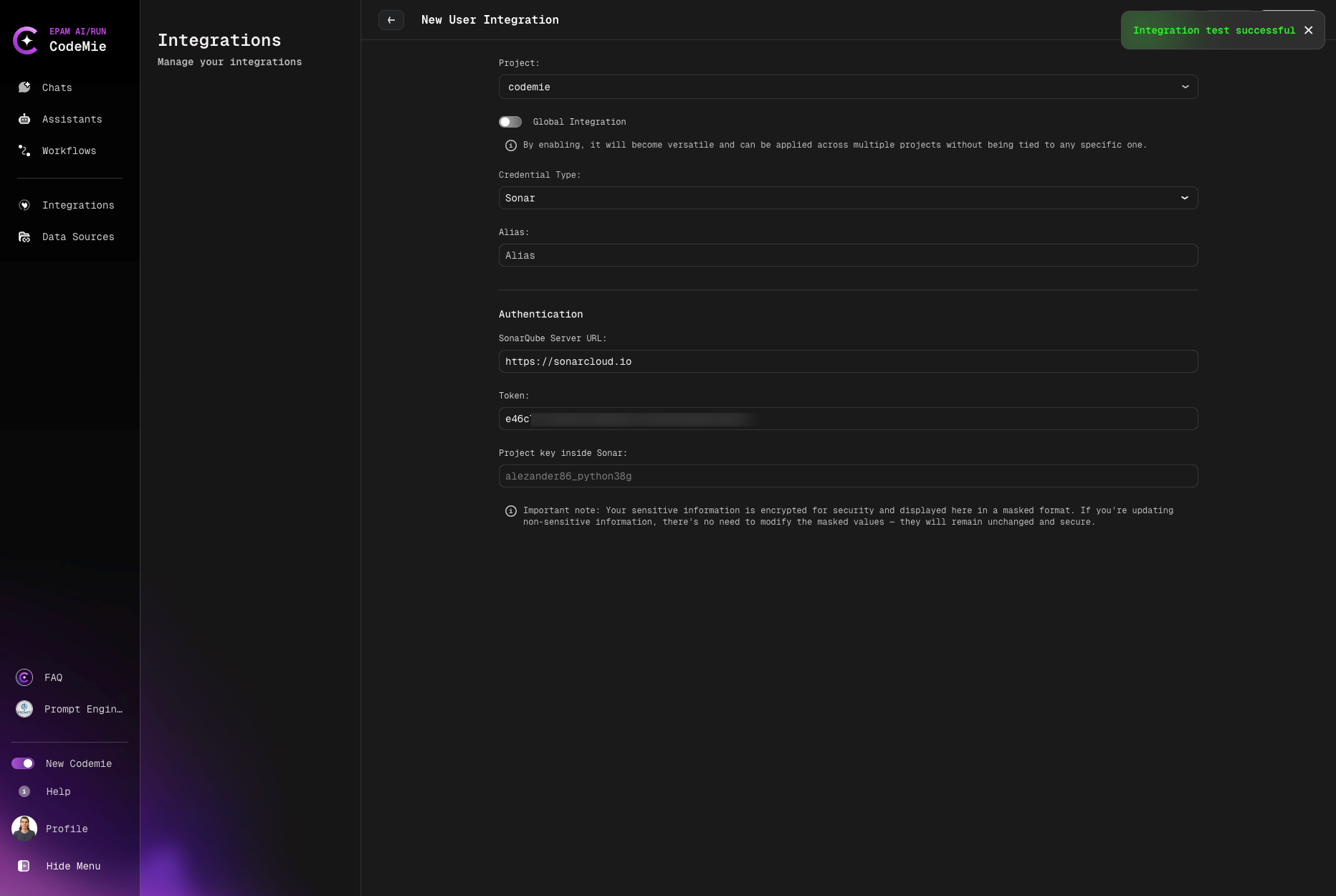
2.2. Specify the integration parameters and click + Create:
- Project: enter your AI/Run CodeMie project name.
- Credential tool: Sonar
- Alias: Enter integration name
- SonarQube Server URL: Specify the URL of your public SonarQube endpoint.
- Token: Enter the token data copied earlier.
- Project name inside Sonar: Enter the SonarQube project name you want your assistant to analyze. Must be the same as specified when creating your SonarQube token.
3. Enable Sonar Tool in Assistant
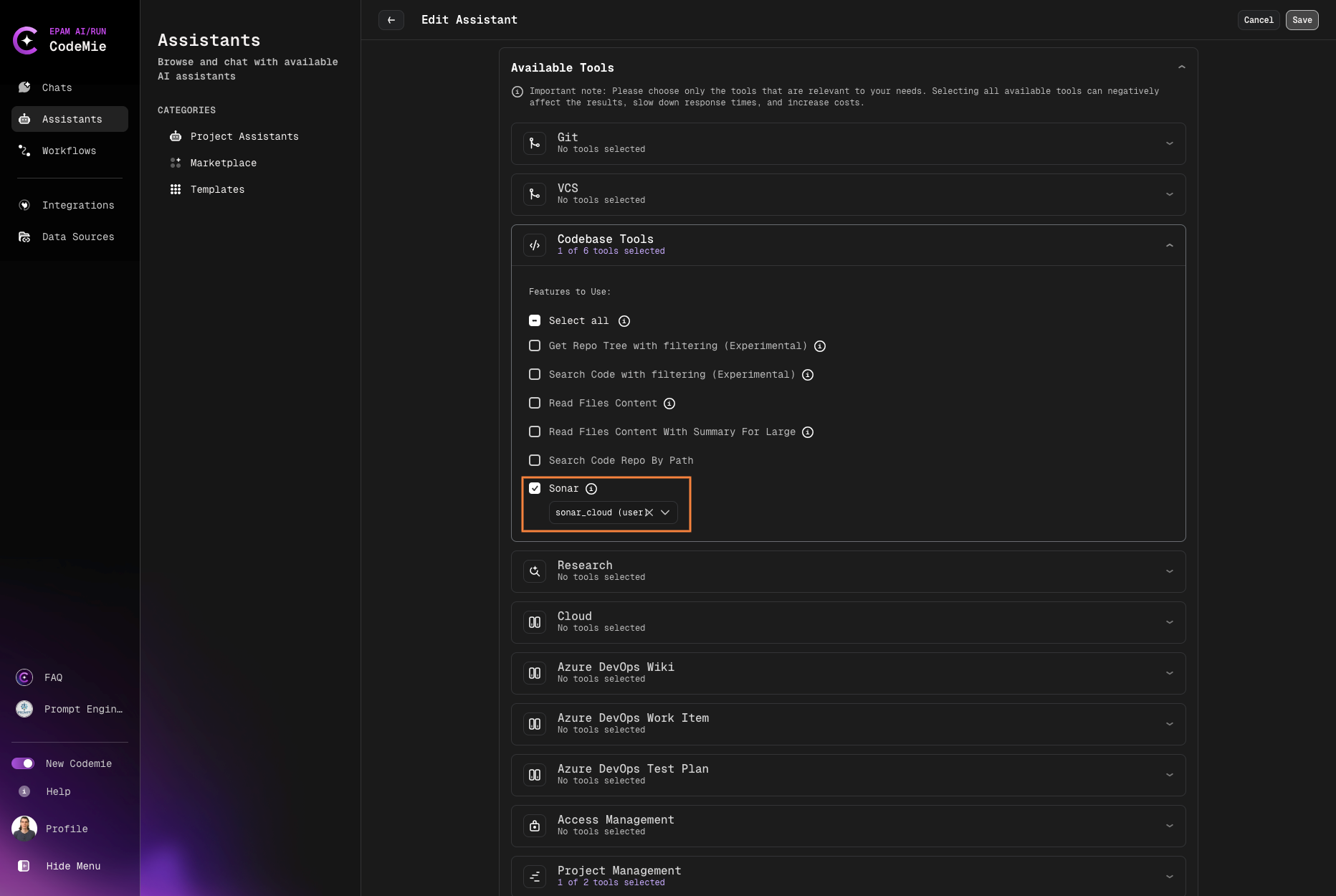
3.1. Edit your assistant by enabling the Sonar tool integration and click Create/Save:
4. Verify Integration
4.1. Verify that your assistant can work with your SonarQube project:
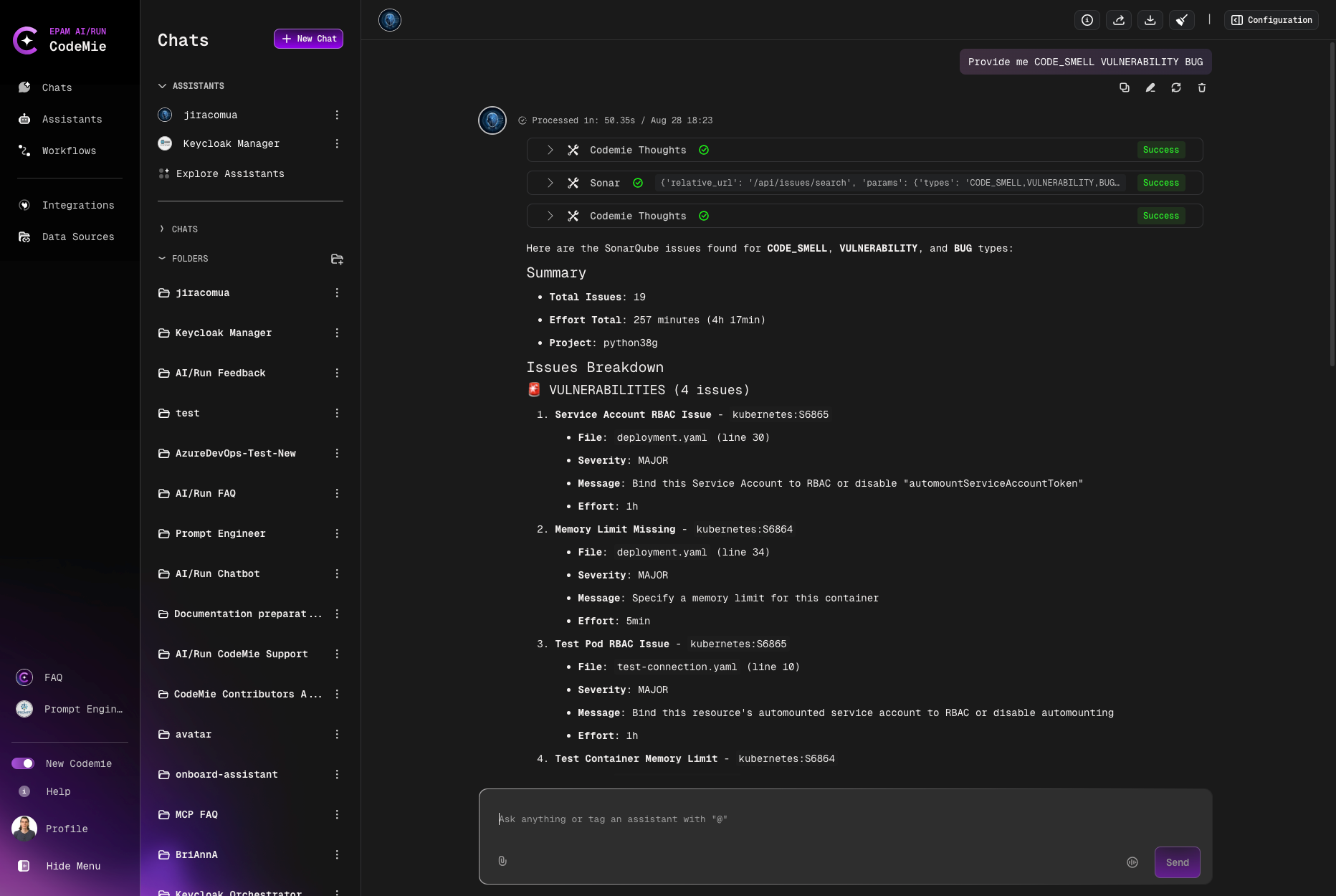
4.2. Ask him to provide you with solutions to the detected issues.