AWS
AI/Run CodeMie can interact with various cloud providers, including Amazon Web Services (AWS). This integration enables users to view and manage cloud resources. To integrate AI/Run CodeMie with the AWS cloud provider, follow the steps below:
1. Configure AWS IAM User
1.1. Log into your AWS account.
1.2. In the search bar, enter IAM.
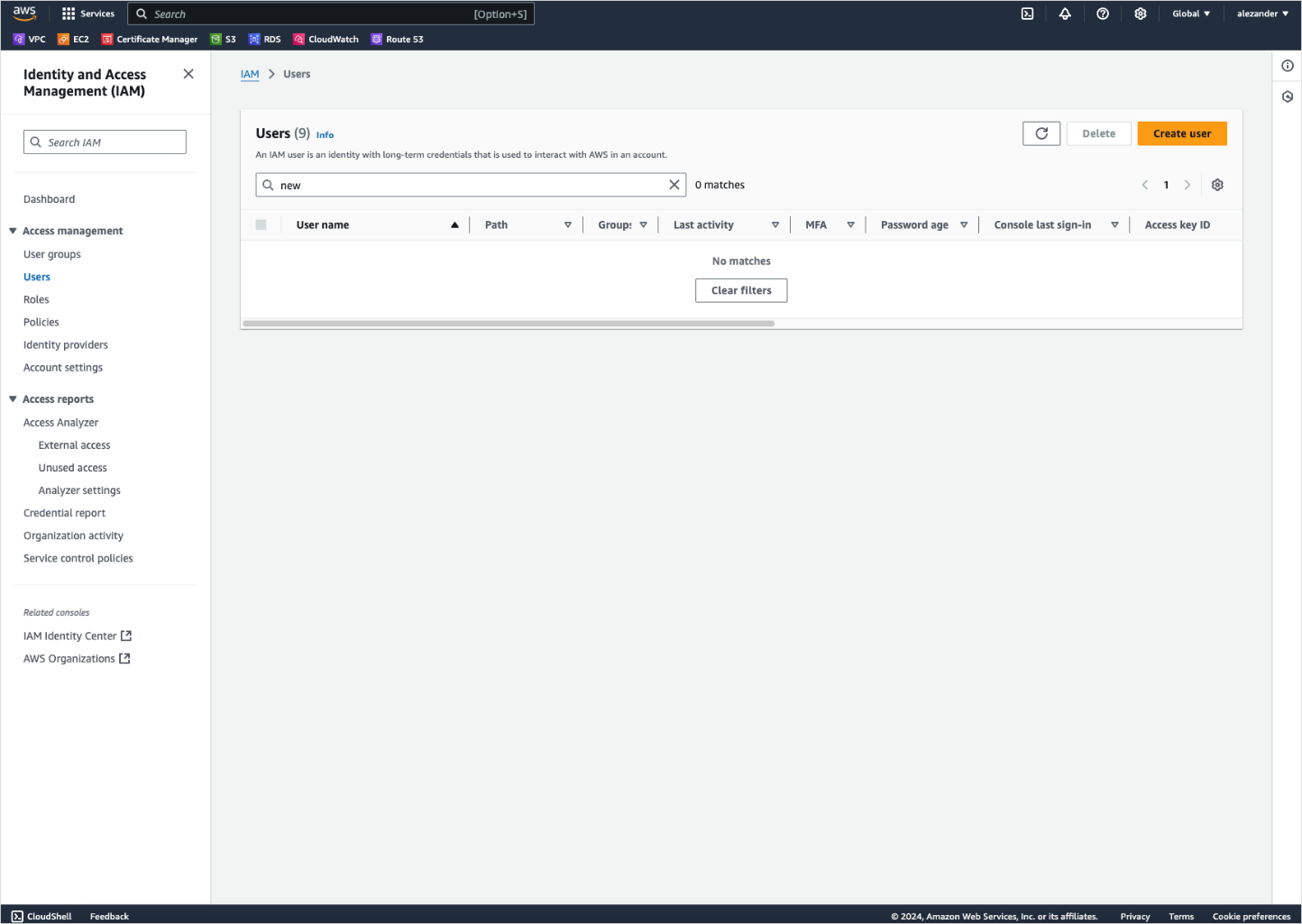
1.3. Navigate to Access management → Users. Click Create user:
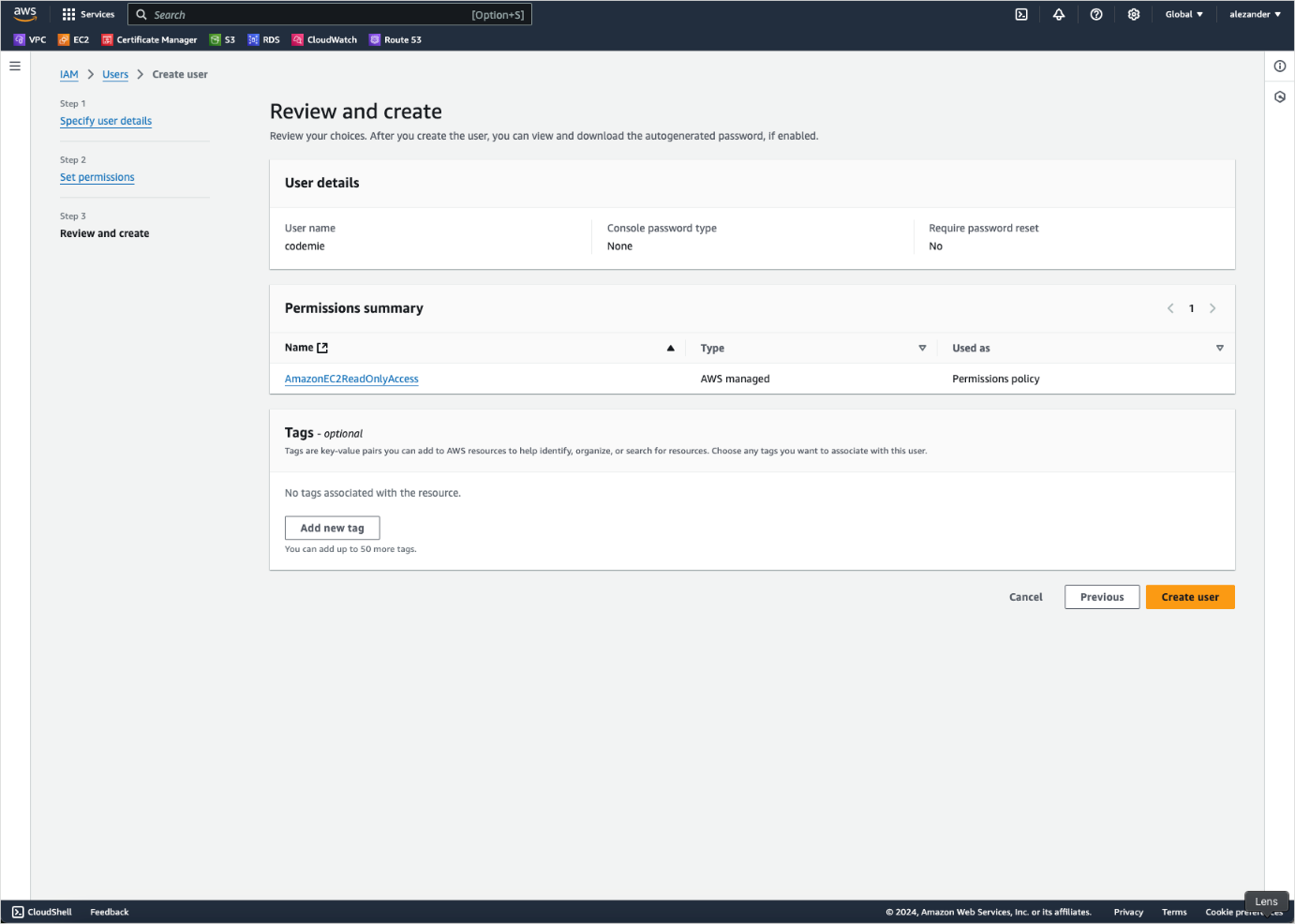
1.4. Set permissions at your description and click Create user:
1.5. Click on the created user to view their management page:
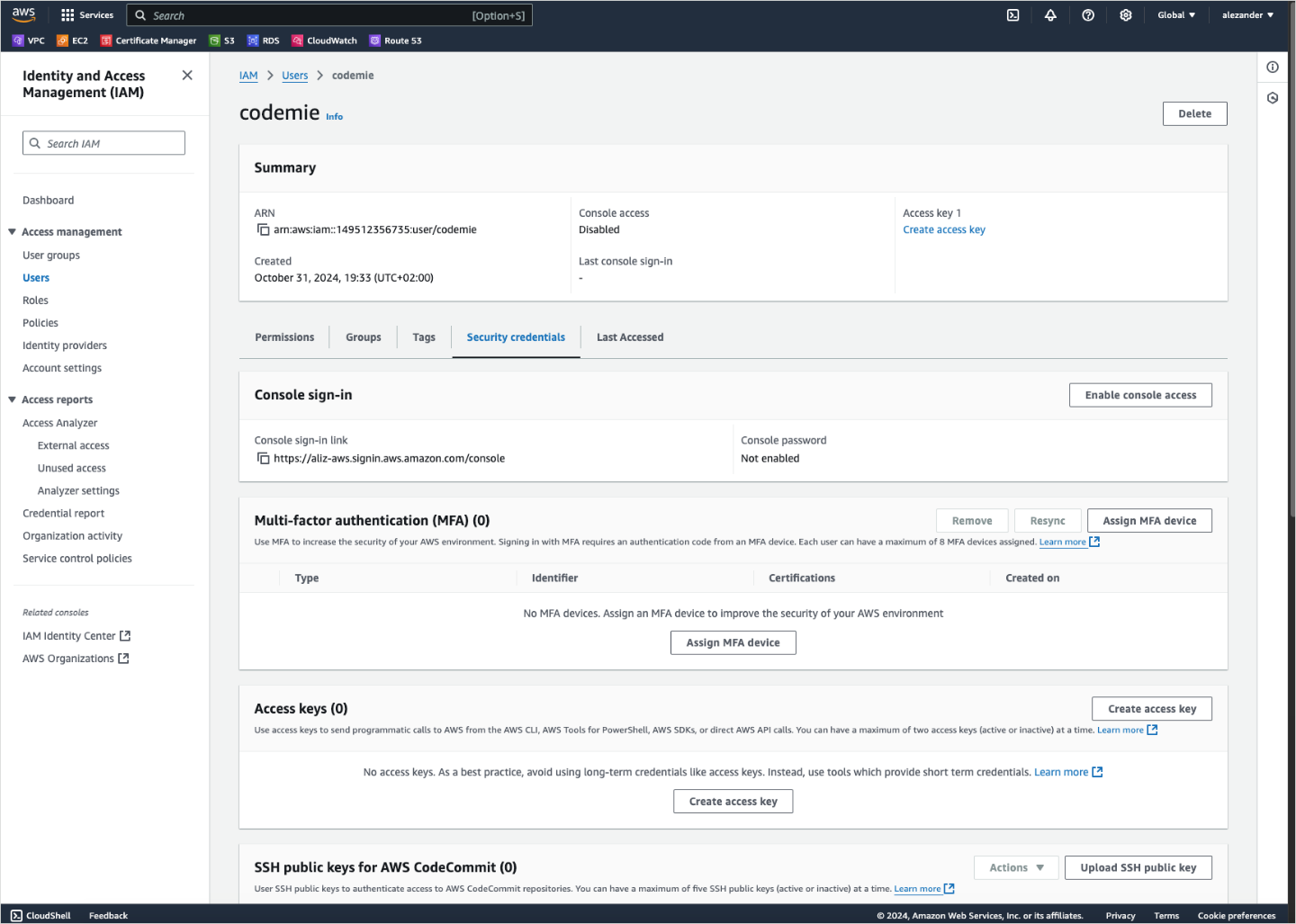
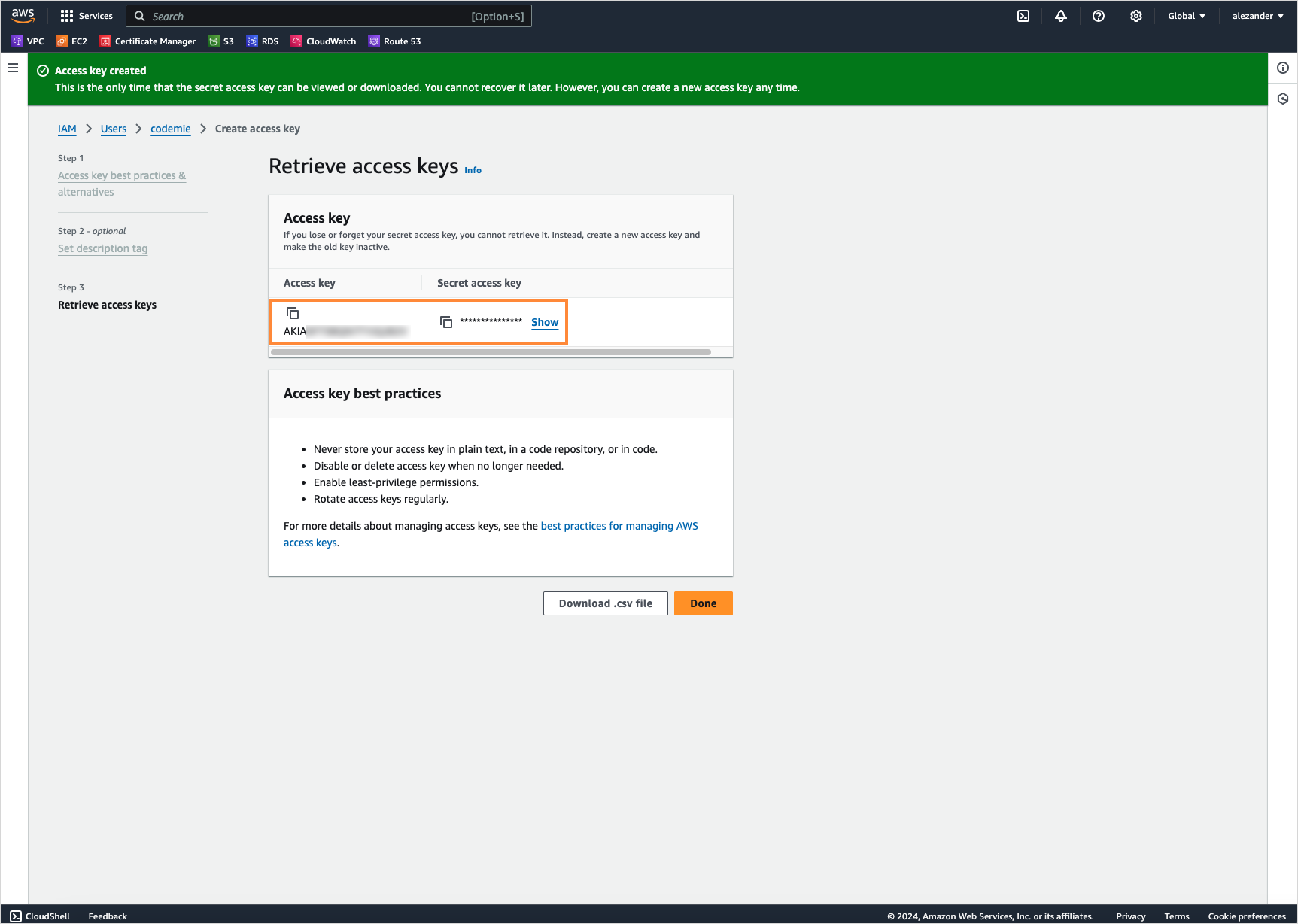
1.6. Navigate to Security credentials → Access keys and click Create access key:
1.7. Copy Access key and Secret access key:
2. Configure Integration in AI/Run CodeMie
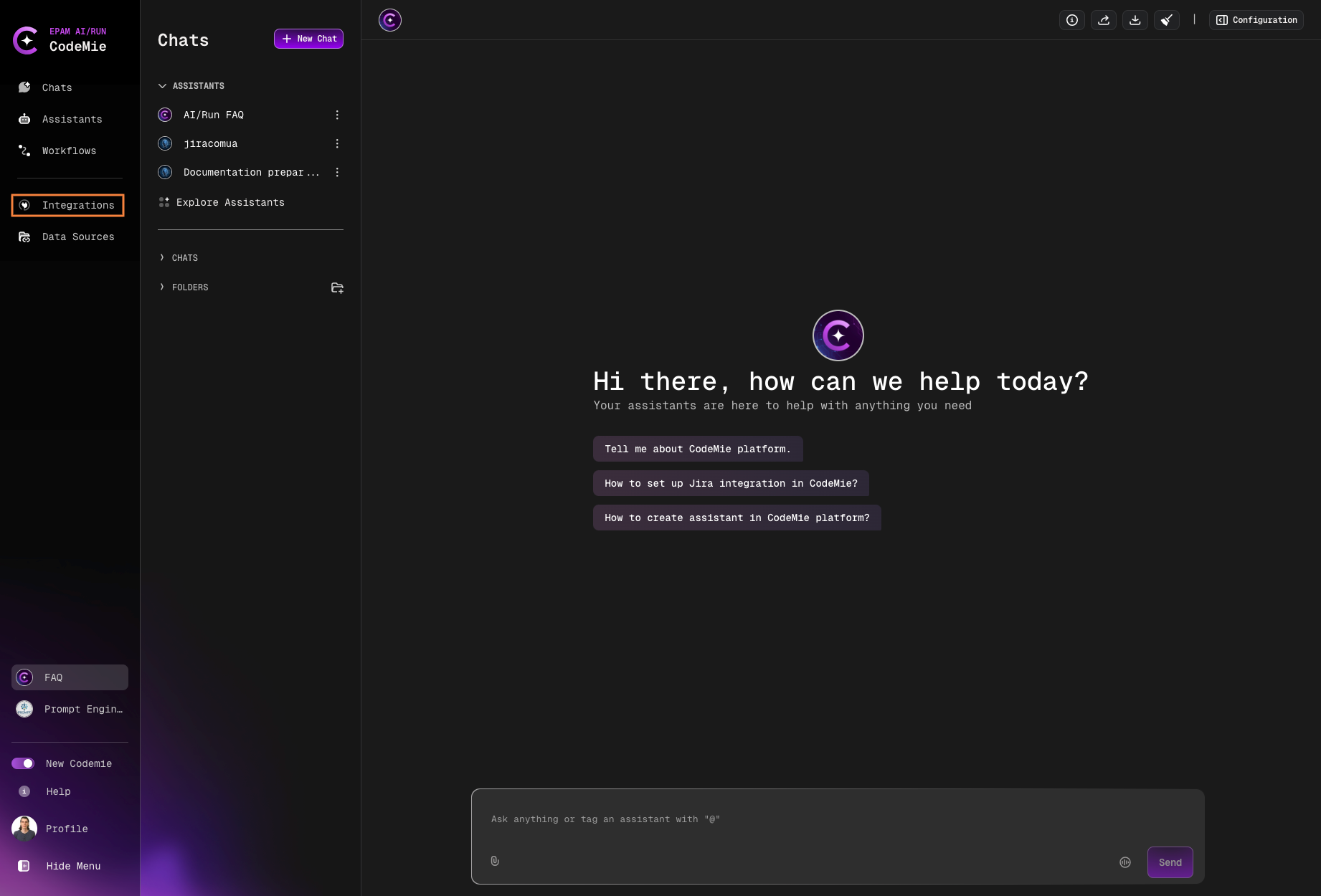
2.1. In the AI/Run CodeMie main menu, click the Integrations button.
2.2. Select User or Project and click the + Create button.
2.3. Fill in the required fields and click Create:
- Project Name: Specify project name.
- Credential Type: AWS
- Alias: Specify the integration name.
- Region: Specify the AWS Region to work in.
- Access Key ID: Paste the Access Key ID data copied from step 1.7.
- Secret access key: Paste the Secret access key data copied from step 1.7.
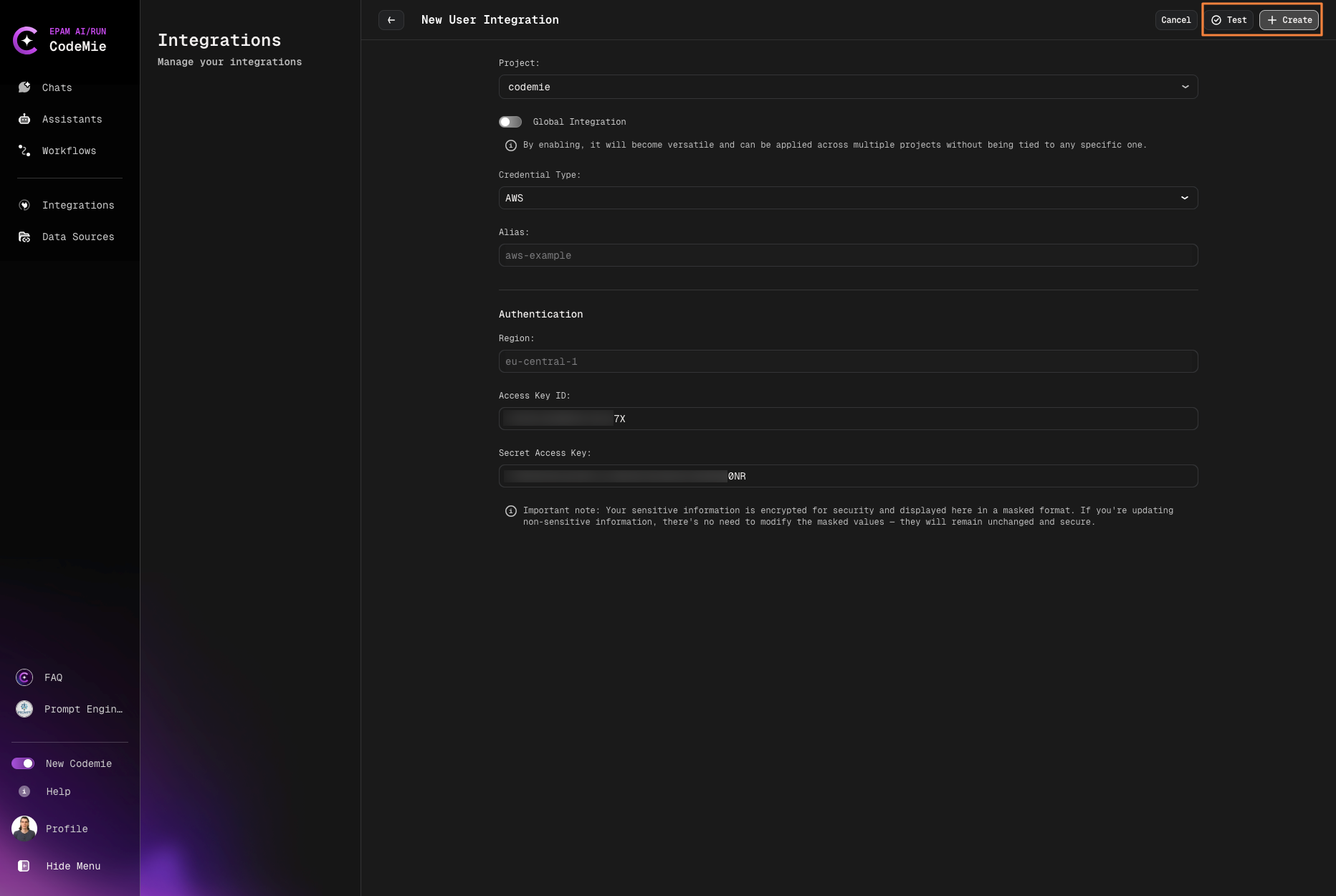
(Optional) you can "Test Integration" connection before creating.
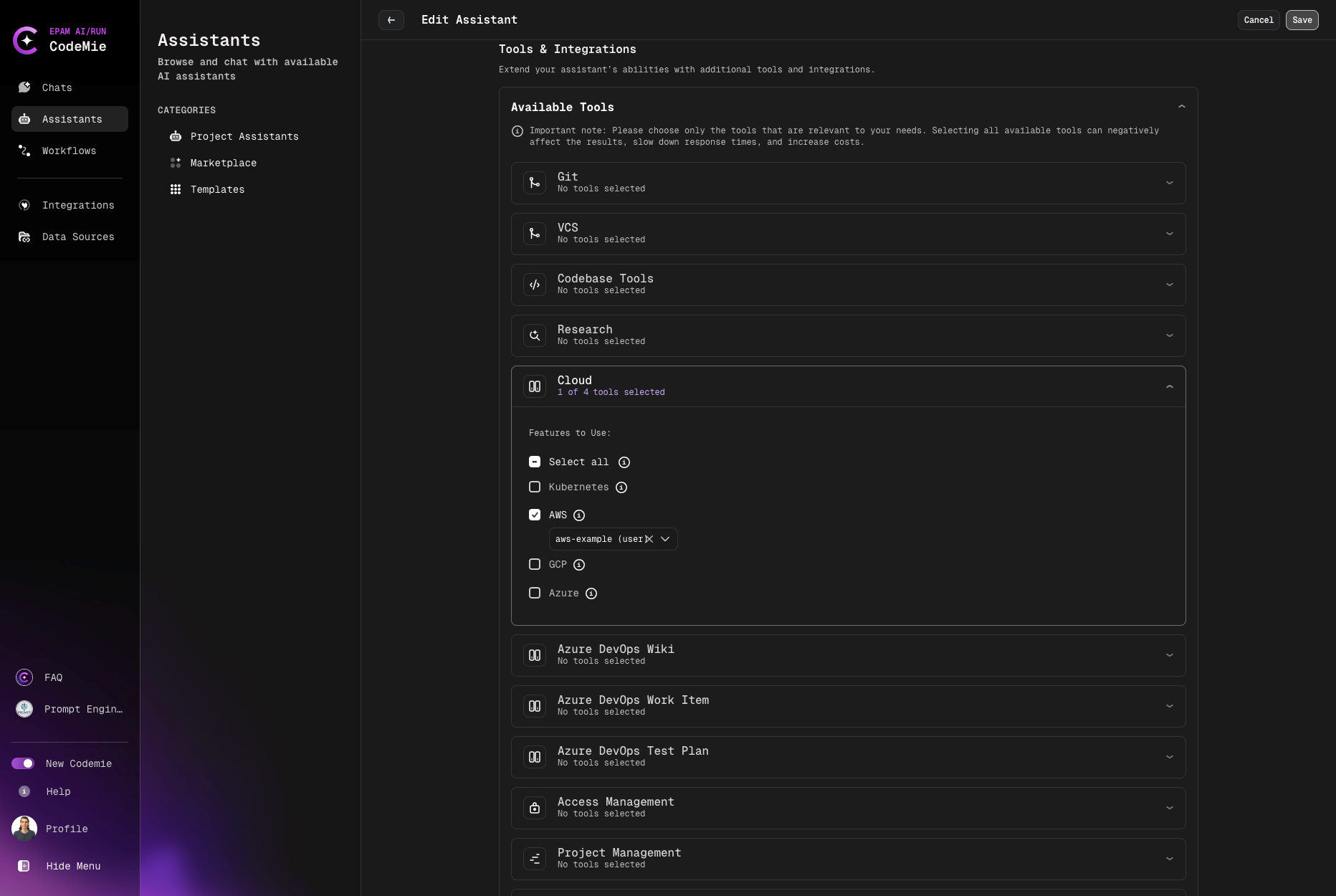
3. Enable AWS Tool in Assistant
3.1. Modify your assistant by enabling AWS integration or create a new assistant with this tool:
4. Verify Integration
4.1. Verify AWS integration by asking assistant a relevant question:
