GCP
AI/Run CodeMie can operate Google Cloud Platform (GCP) resources. Integration with GCP tools enables users to view and manage cloud resources. To integrate AI/Run CodeMie with the GCP cloud provider, follow the steps below:
1. Configure GCP Service Account
1.1. Log into your GCP account.
1.2. Select Project ID, if not selected yet.
1.3. In the Navigation menu, select IAM → Service Accounts. Create a service account or use an existing one with the permissions you want to delegate to AI/Run CodeMie. Refer to the official documentation for more details.
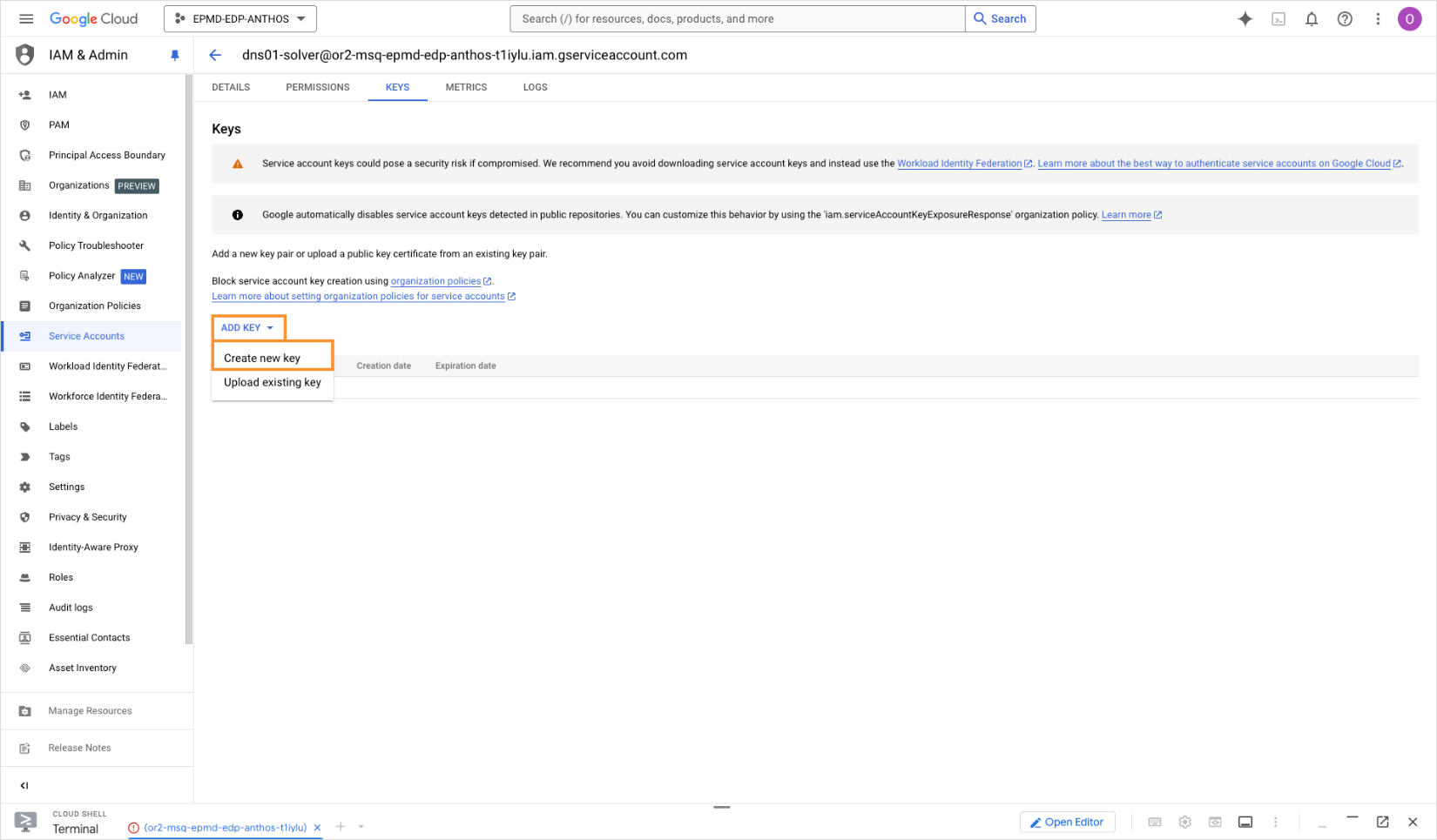
1.4. Navigate to a created/selected account. In the Keys tab, click Add key → Create new key:
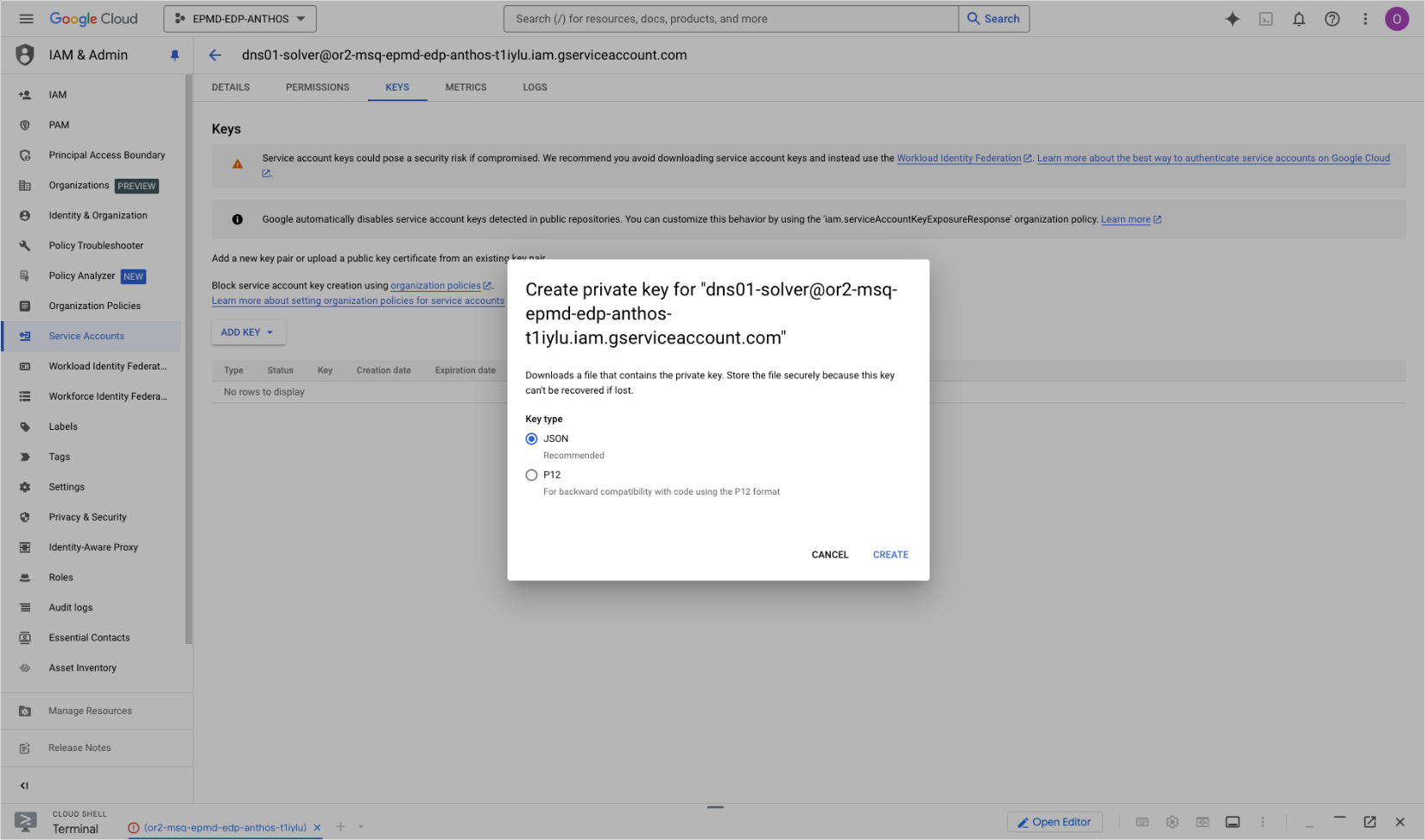
1.5. On the create private key window, select the JSON format and click Create:
1.6. Download the .json file with the service account credentials and copy its data.
2. Configure Integration in AI/Run CodeMie
2.1. In the AI/Run CodeMie main menu, click the Integrations button.
2.2. Select User or Project and click the + Create button.
2.3. Fill in the required fields and click Create:
- Project Name: Specify project name.
- Credential Type: GCP
- Alias: Specify the integration name.
- Service Account Key in JSON format: Paste the service account key you copied on the step 1.6.
3. Verify Integration
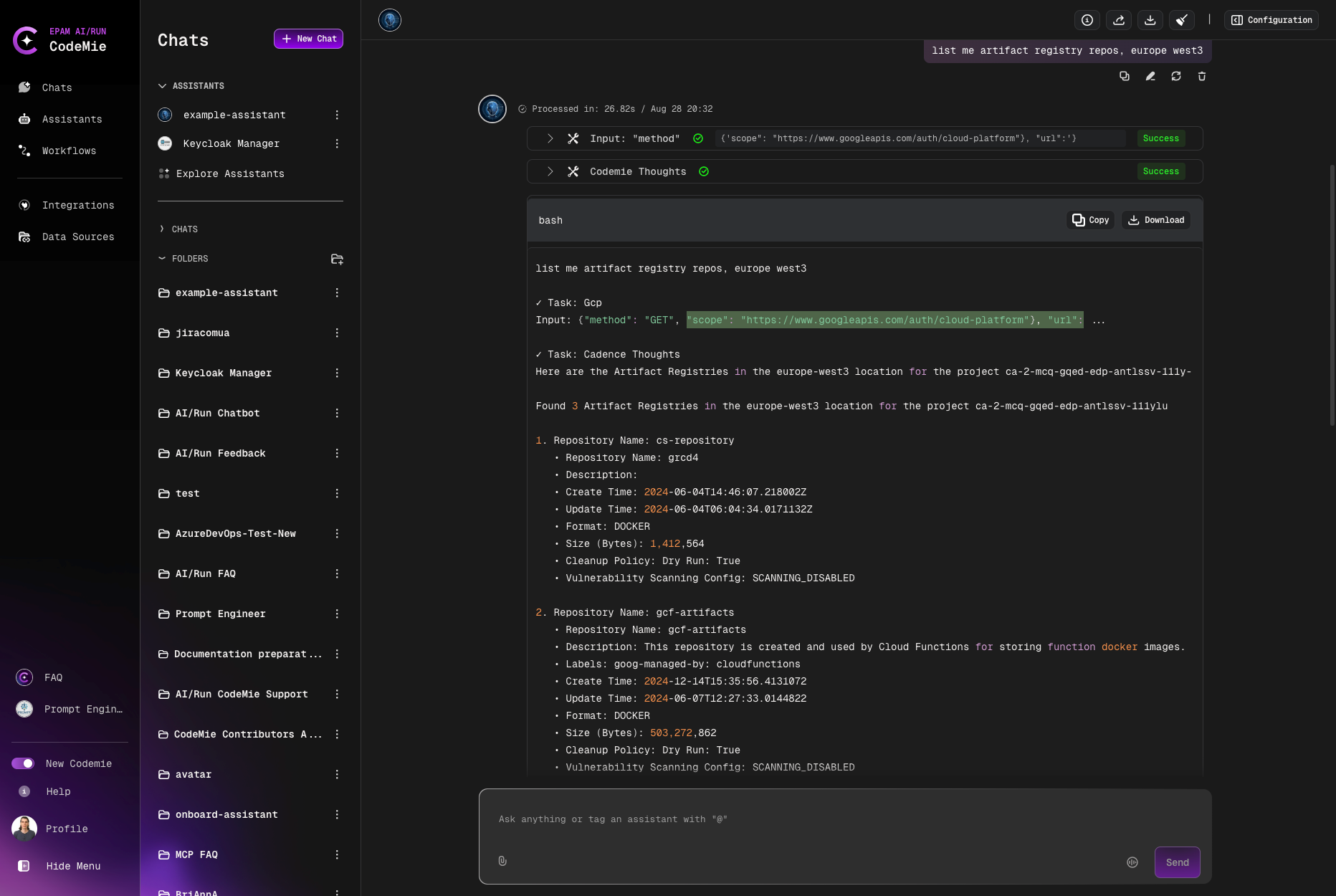
3.1. Verify GCP integration by asking assistant a relevant question: