Elastic
Elastic is a robust platform for search and data analysis, allowing seamless integration with various tools. AI/Run CodeMie assistants can connect to an Elastic endpoint to retrieve data efficiently. To set up this integration, follow these steps:
1. Obtain Credentials
There are two ways to obtain Elastic credentials:
- Using terminal
- Using Elastic UI
Option 1: Using Terminal
1.1. Use command for curl below:
curl -X POST "https://<elasticsearch_url>:9200/_security/api_key" \
-H "Content-Type: application/json" \
-H "Authorization: Basic <base64-encoded-username-password>" \
-d '{
  "name": "my-api-key",
  "role_descriptors": {
    "my-role": {
      "cluster": ["all"],
      "index": [
        {
          "names": ["*"],
          "privileges": ["read"]
        }
      ]
    }
  }
}'
1.2. Copy the command's output. Below is an example of such an output:
{
  "id": "id-of-the-api-key",
  "name": "my-api-key",
  "api_key": "your-api-key-value"
}
1.3. Ensure to save the id and api_key fields as they are necessary for integration with AI/Run CodeMie.
Option 2: Using Elastic UI
2.1. Navigate Elastic UI → Management → Stack Management:
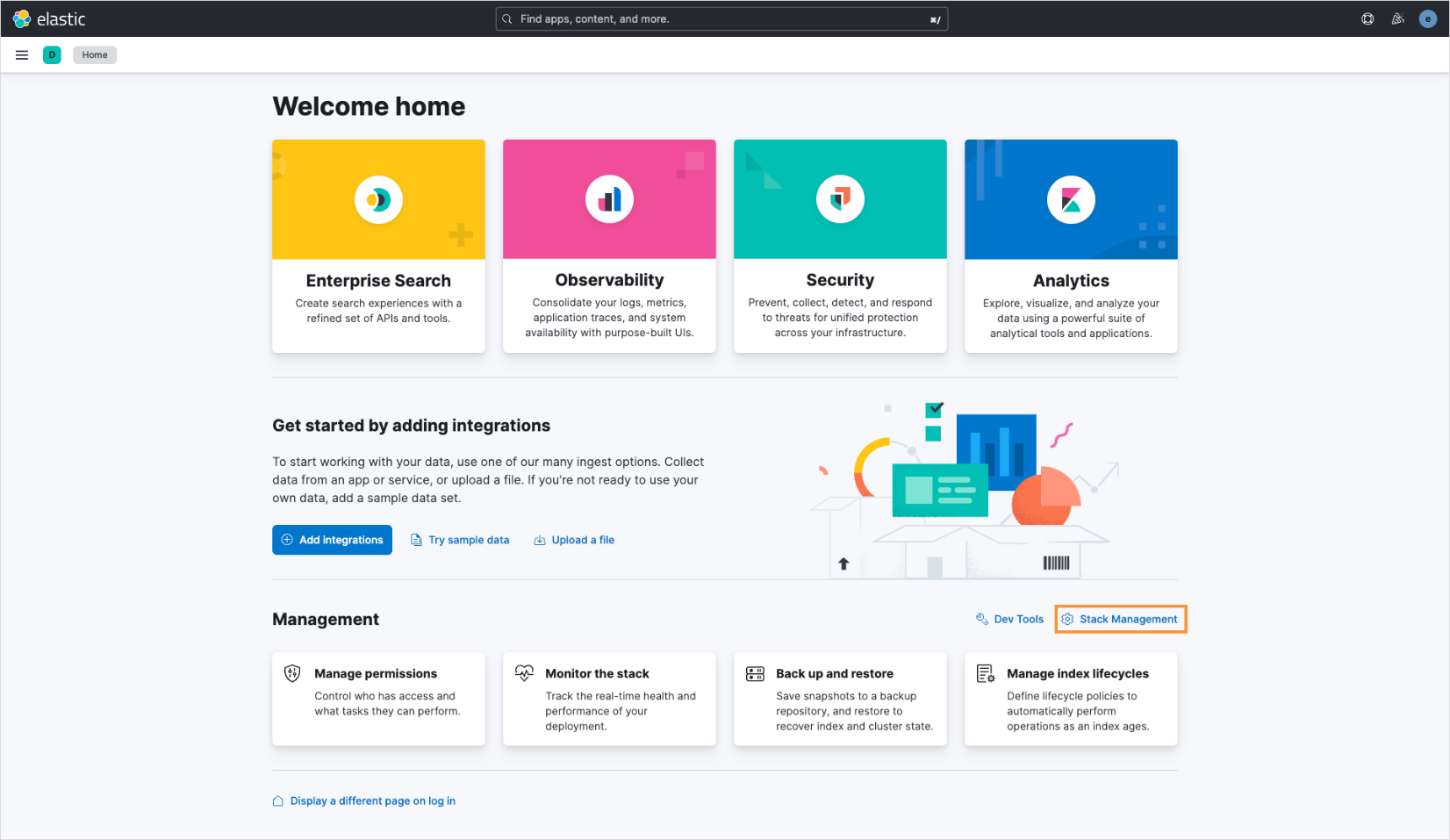
2.2. On the Stack Management page, navigate to Security and select API keys:
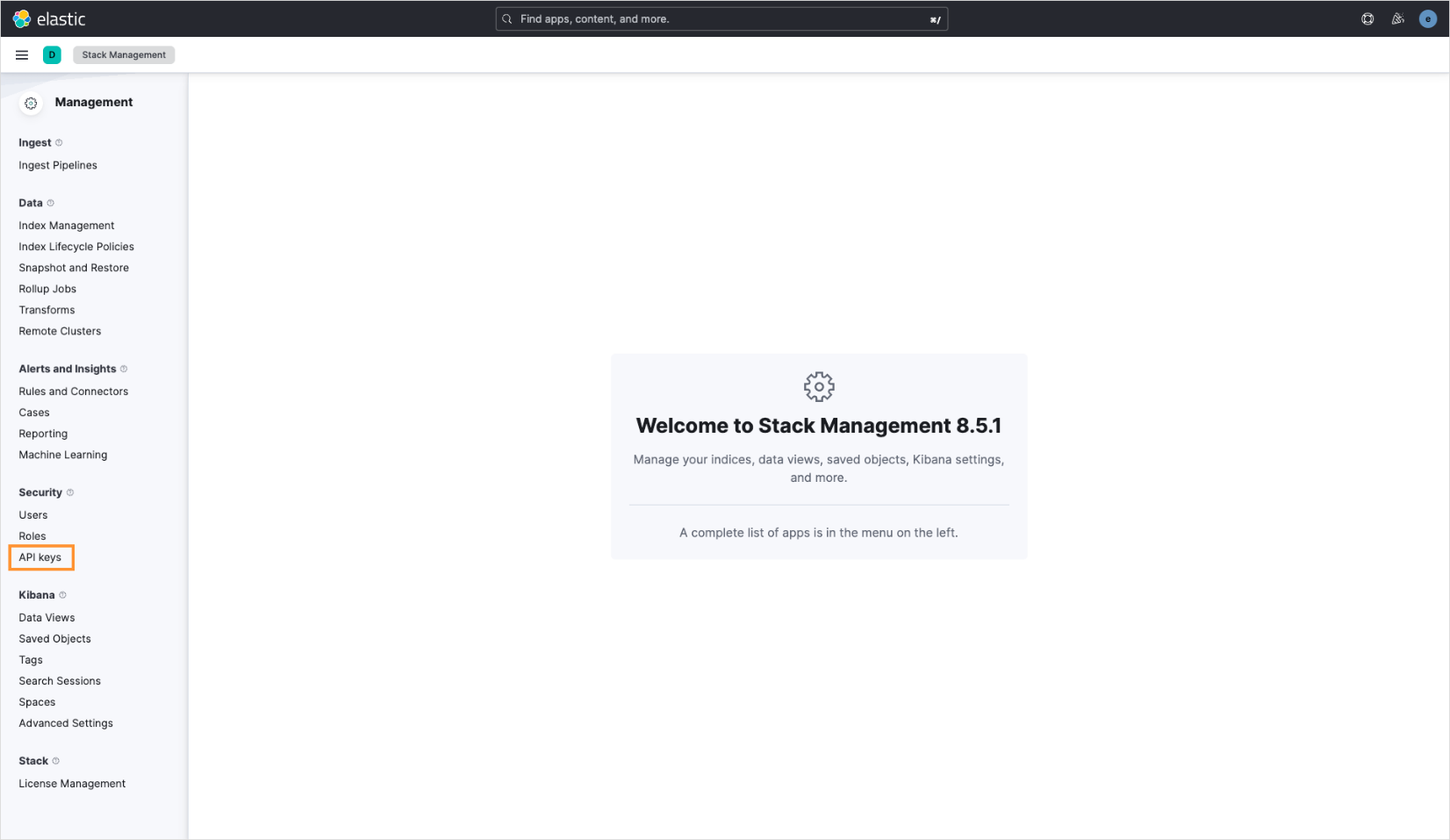
2.3. Click Create API key:
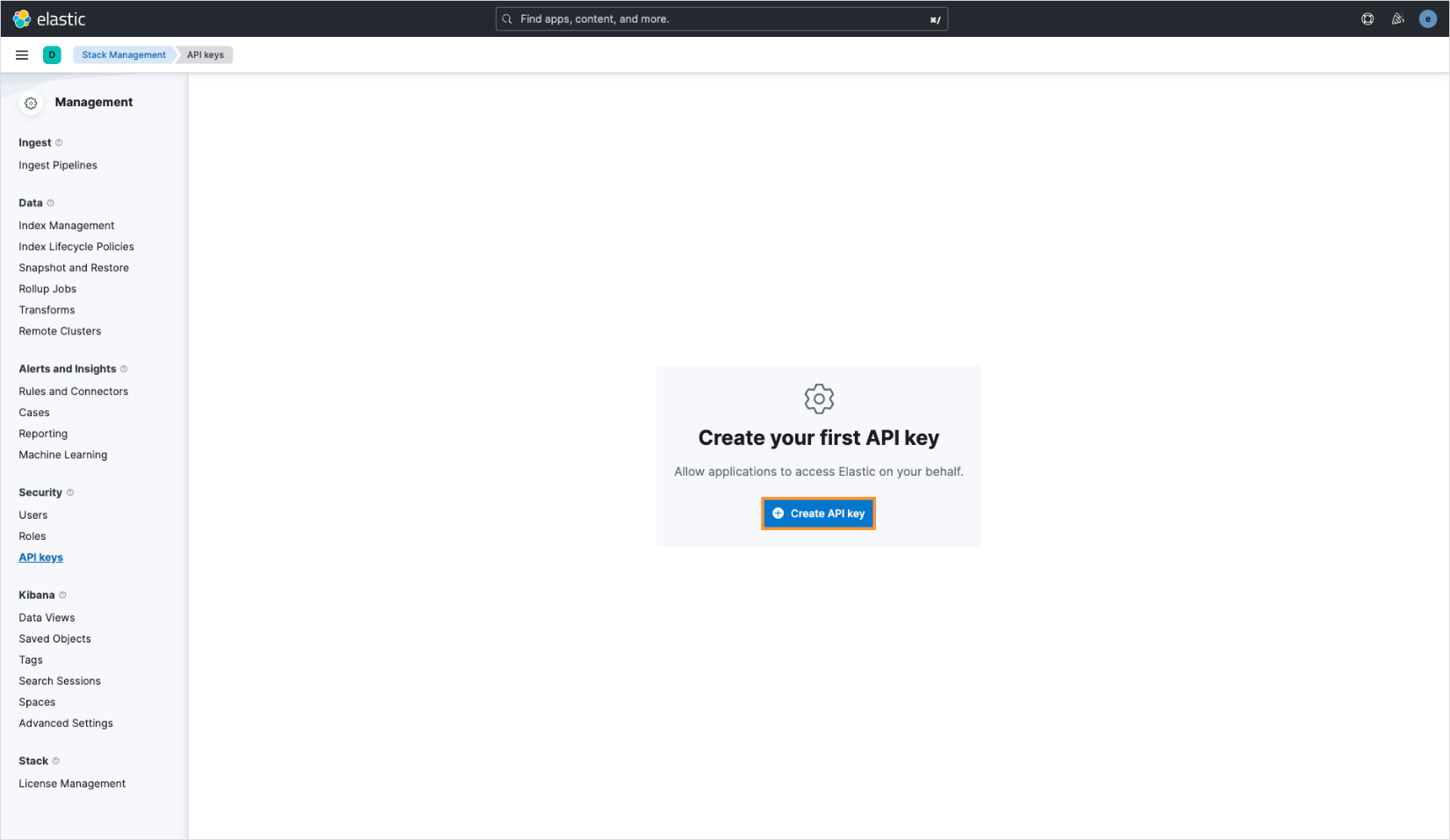
2.4. Fill in the Name field and click Create API key:
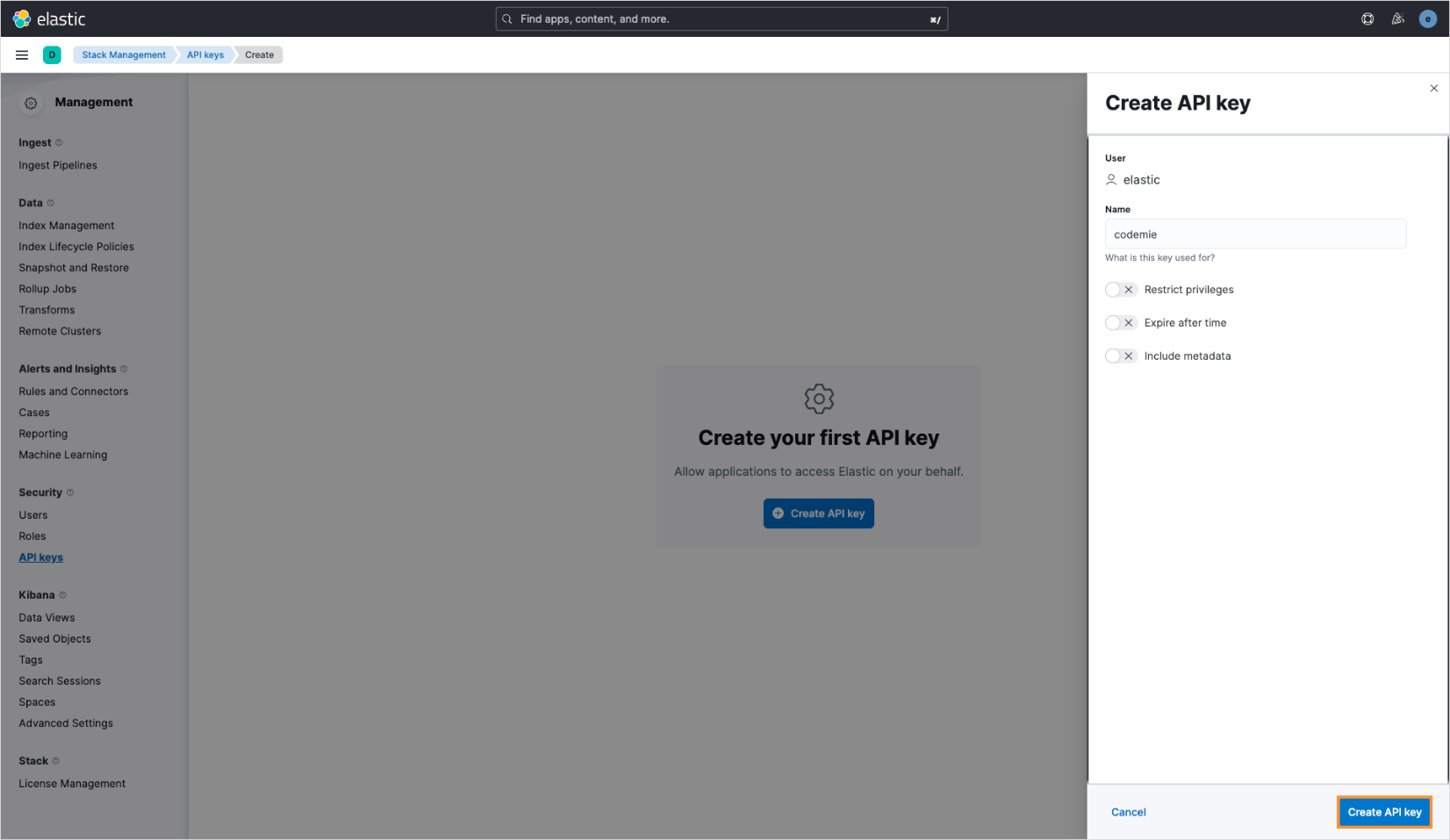
2.5. Click the format type drop-down list and choose JSON. Copy the output.
2. Configure Integration in AI/Run CodeMie
2.1. In AI/Run CodeMie, navigate to the Integrations tab and click + Create.
2.2. Fill in the required fields:
-
Project: Enter your project name.
-
Credential Tool: Elastic
-
Alias: Enter integration name (e.g., elastic-integration)
-
Elastic URL: Enter your Elasticsearch endpoint URL
-
API Key ID: Paste the
idfield from step 1 -
API Key: Paste the
api_keyfield from step 12.3. Click Create.
3. Enable Elastic Tool in Assistant
3.1. Modify your assistant by enabling Elastic integration or create a new assistant with this tool.