Git AzureDevops
To integrate Version Control System Azure DevOps tool in CodeMie, follow the steps below:
1. Generate Access Token for Azure DevOps GIT
1.1 Navigate to Personal Access Tokens
- Log in to your Azure DevOps account
- Click on your settings icon in the top-right corner
- Click Personal Access Tokens
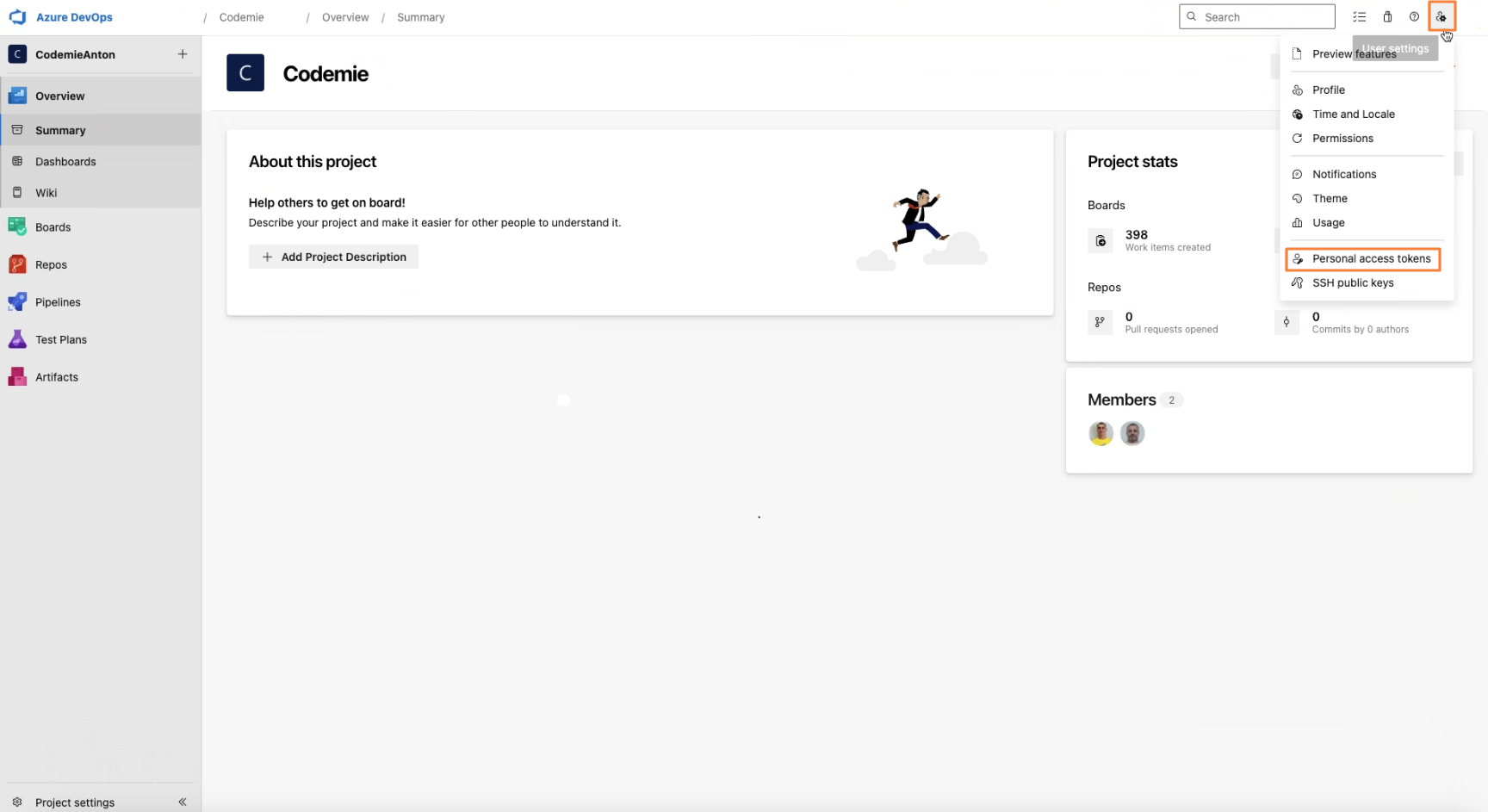
- In the right sidebar, navigate to Security → Personal Access Tokens
1.2 Create New Token
Click the + New Token button. Fill in the token creation form:
- Name: Enter a descriptive name (e.g., "CodeMie Integration Token")
- Organization: Select your organization from the dropdown
- Expiration (UTC): Set expiration date.
- Scopes: Select Full access for comprehensive integration
- Click the Create button

- IMPORTANT: Immediately copy the generated token from the success dialog
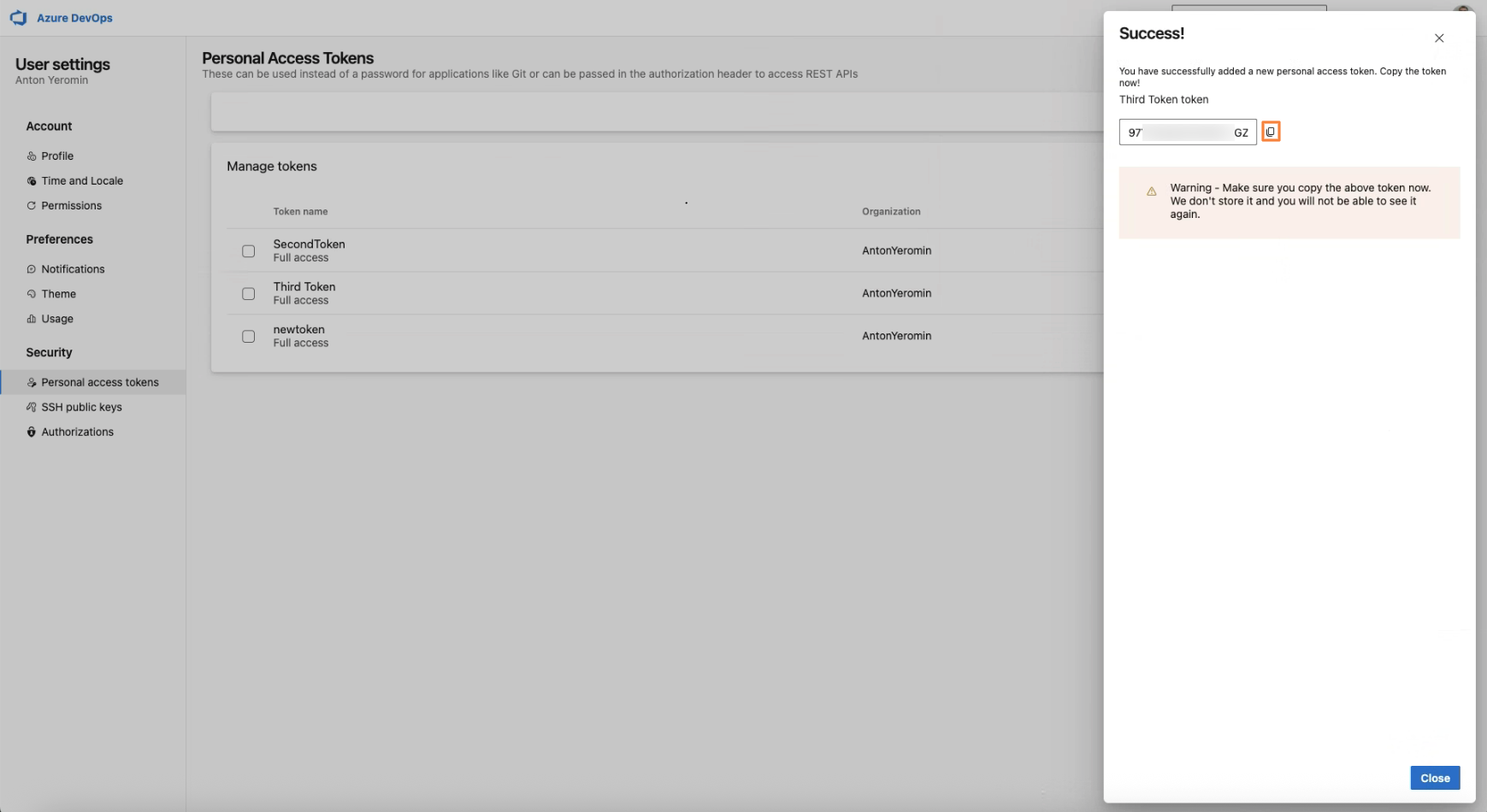
- Store the token securely - it will not be displayed again
2. Configure Integration in CodeMie
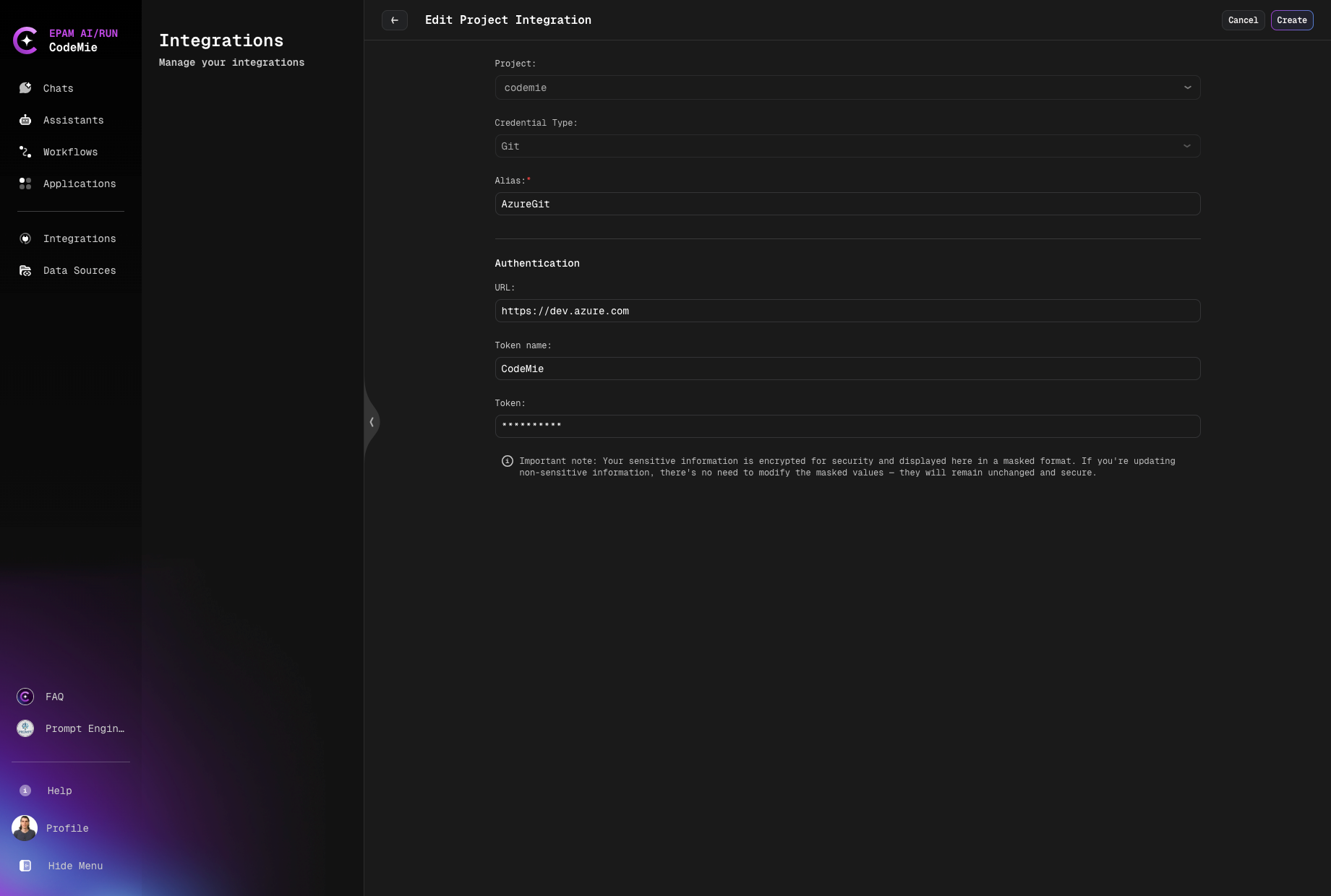
- In the CodeMie main menu, click the integrations button.
- Select Integration Type: User or Project and click Create.
- Select the Project Name.
- Select the Credential Type: Git.
- Fill in the Alias is a representation of the user setting.
- Fill in the URL field. For example: https://dev.azure.com.
- Fill in the Token name field.
- Fill in the Token field with the token created at step 1.
- Click + Create.
3. Create Assistant
- Click Explore Assistant, select Templates and choose for example [Template] Coder.
- Select your Project and type Name and Datasource Context.
- In the Available tools section, select Git integration and choose your credentials from the dropdown list.
- Click Create.
4. Use Your Assistant
Click Explore Assistant, select My Assistant and choose by Name your assistant.
note
Tokens have an expiration date.