Folders Overview
Organize your chat history by grouping conversations based on the assistants you use. This provides better structure than the default chronological view.
Default View vs Folder View
Default View: Chats are sorted by most recent activity, with the latest conversations at the top.
Folder View: Chats are grouped into folders, with each folder representing a specific assistant.
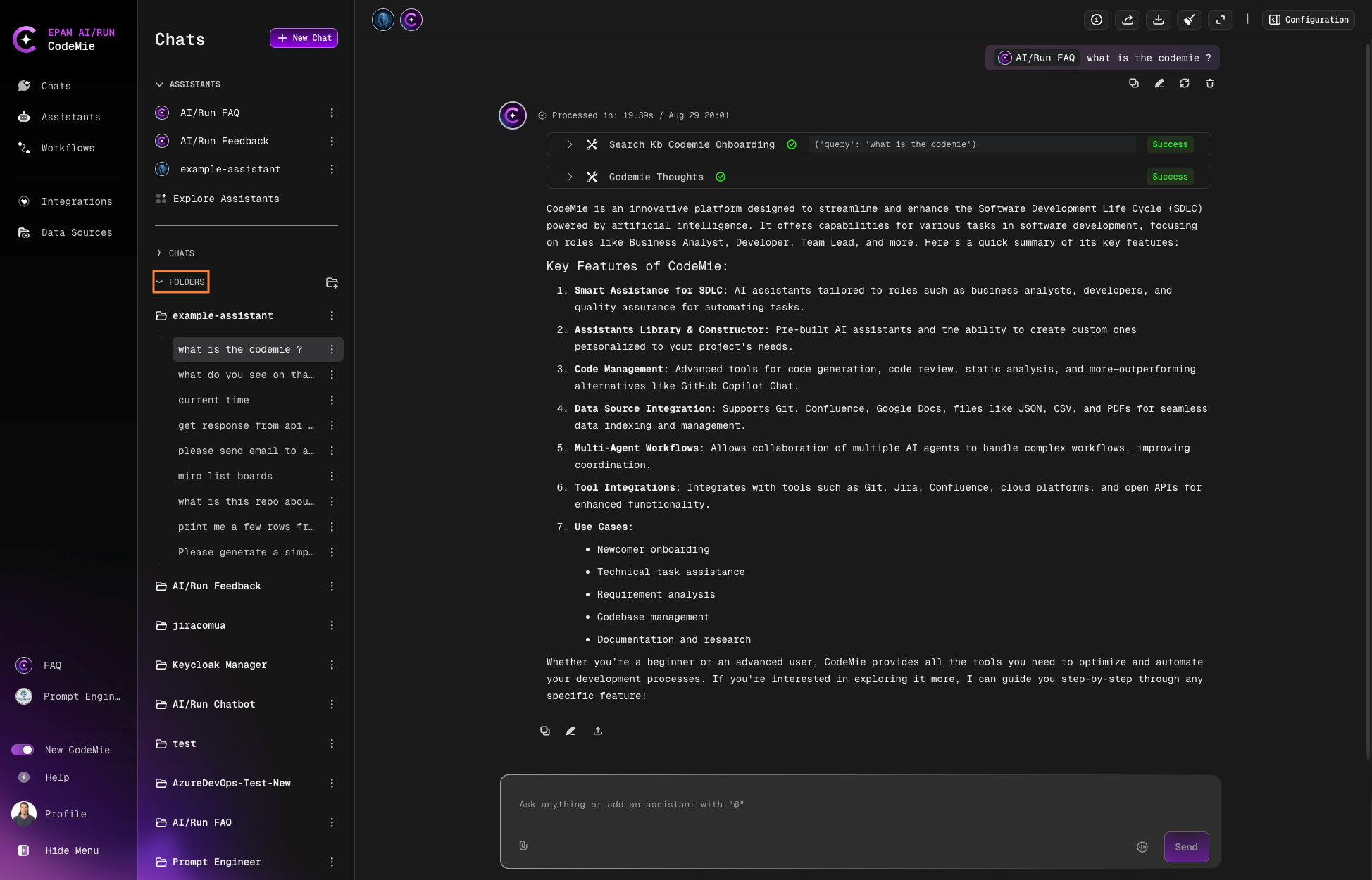
Enable Folder View
Toggle the by "Folders" option in the chat navigation:
Working with Folders
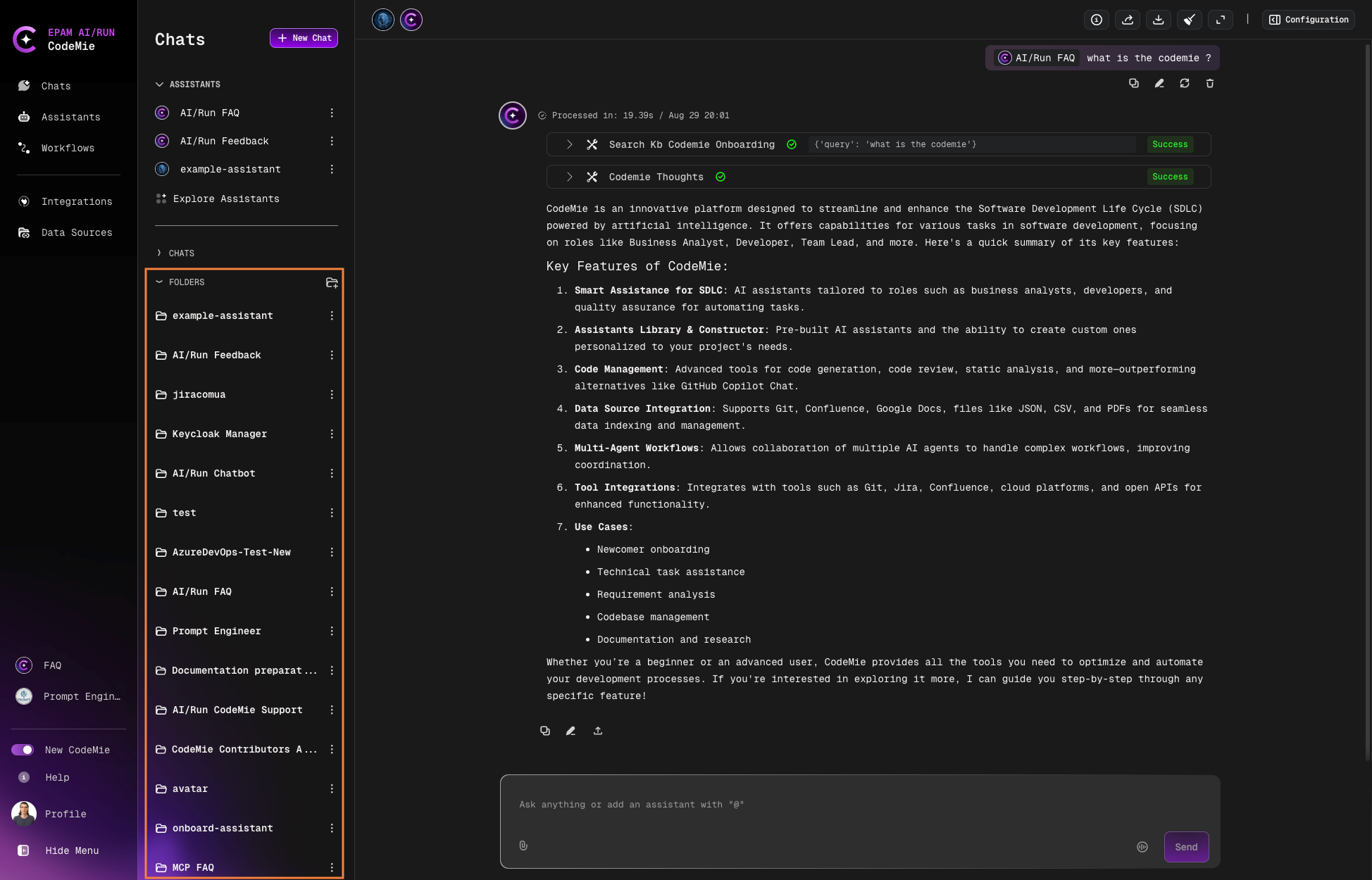
Browse Folders
When folder view is enabled, you'll see folders named after your assistants:
View Chats in a Folder
Click a folder to expand the drop-down list of conversations:
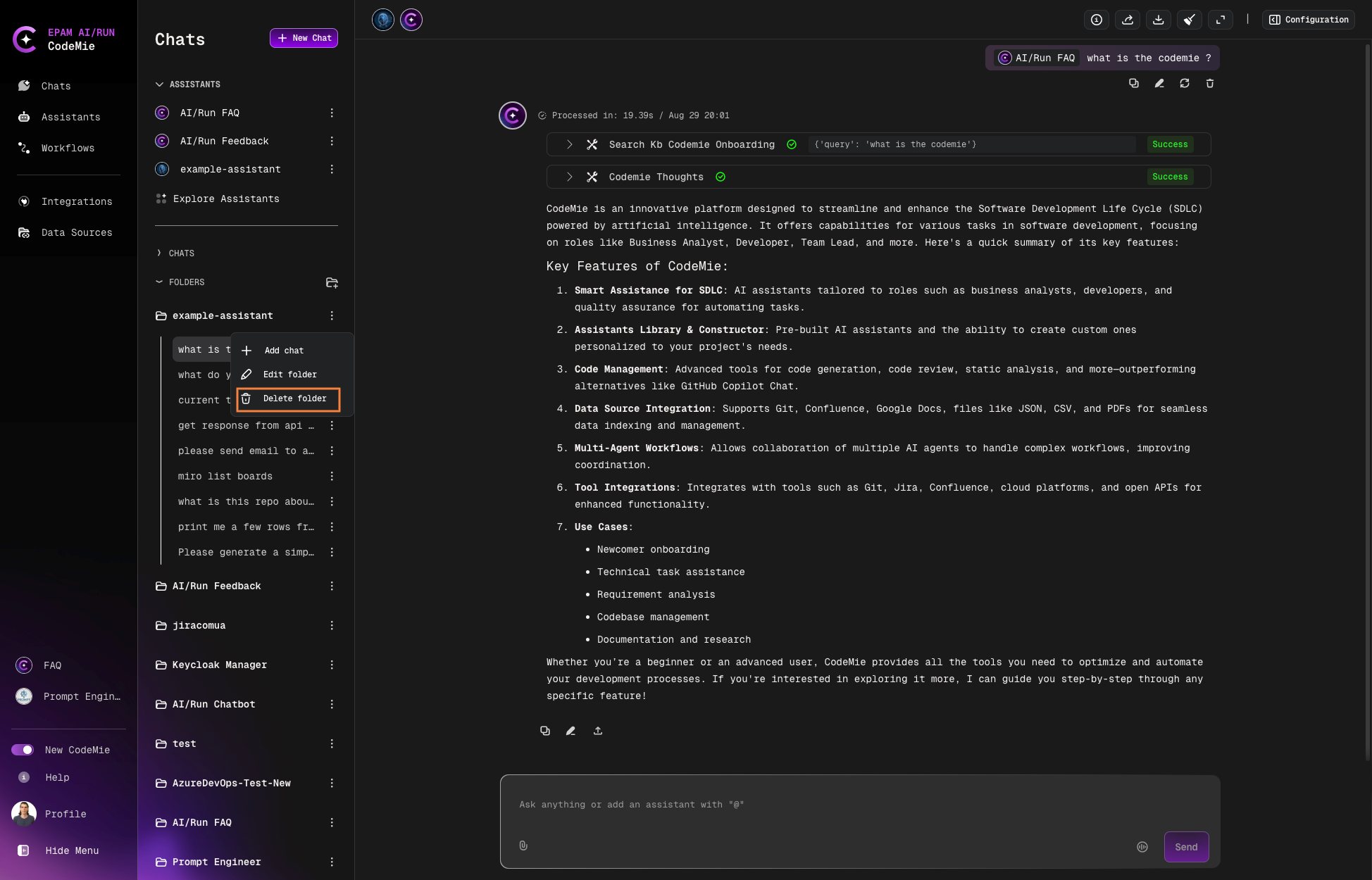
Bulk Delete Chats
Delete all chats within a folder by deleting the folder itself:
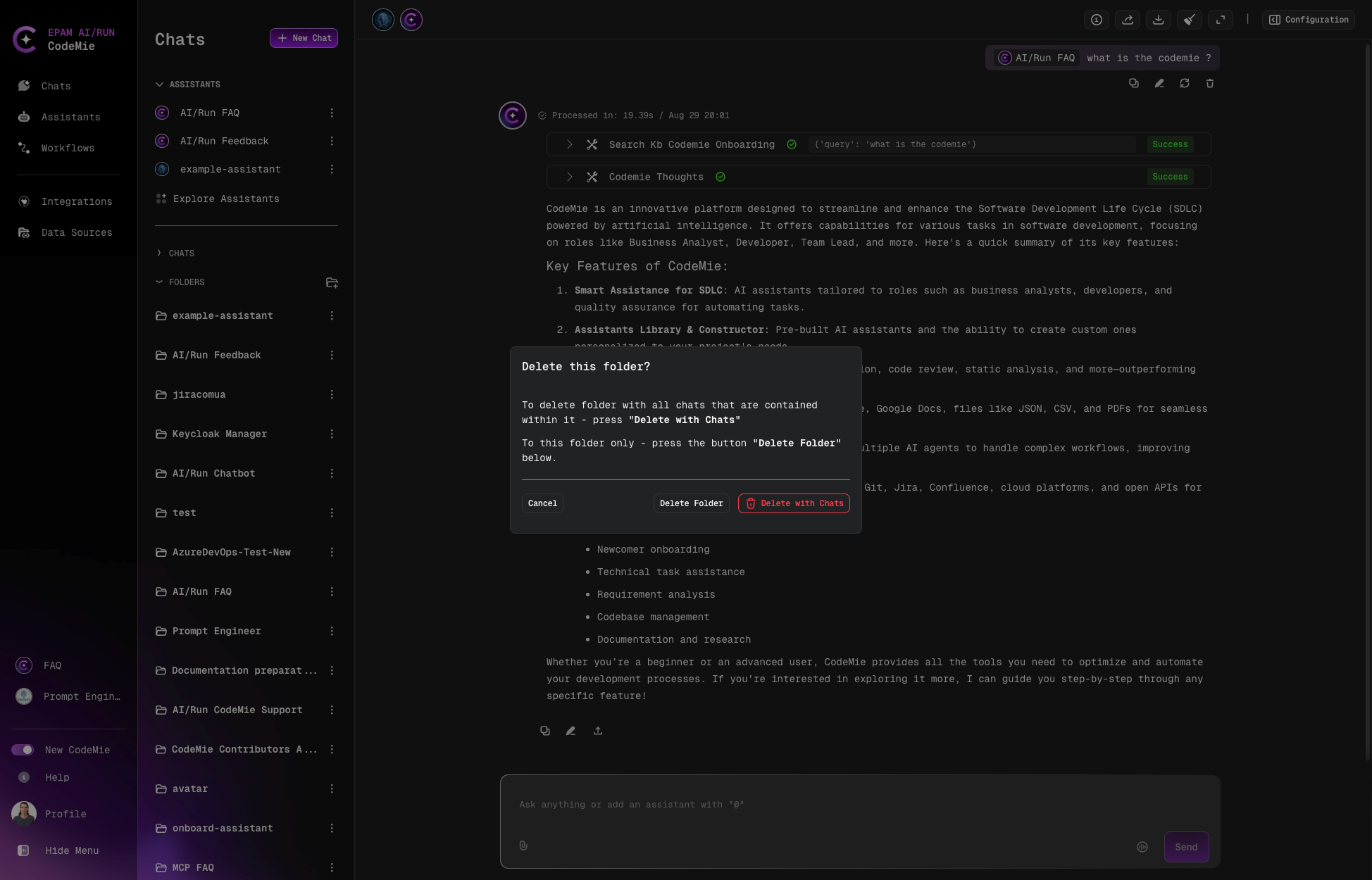
Deleting a folder removes all associated chats at once, which is much faster than deleting conversations individually.
If an assistant is deleted, all related chats will be moved to the Default folder.